ChatGPT Business Hub analytics gives a verified business a count of mentions, a count of website clicks, and the discovery topics behind them, all aggregated over the past 28 days. Treat those numbers as first-party signals from one engine. Keep them next to your GA4 sessions and any third-party tracker, and never swap one for another.
OpenAI launched Businesses in ChatGPT in beta on November 10, 2026. Business Hub is the part where you claim your business, manage its information and see how people engage with it in ChatGPT. Business Hub gives marketing teams OpenAI's own counts to place beside prompt audits, referral data and third-party trackers. The counts are narrow. They cover one engine, hide the prompts and include no competitor comparisons.
Businesses in ChatGPT series: Overview · Claim and verify · Measure visibility (this article) · B2B and services · Update business information · Create a Business Agent · Search-console comparison and history
Here is the short version, row by row:
| Takeaway | What to do | Reference |
|---|---|---|
| Insights unlock only after your claim and Persona identity verification are both approved | Claim in Business Hub, then finish Persona before you expect any data | OpenAI setup guide |
| For an online business, a mention requires ChatGPT to reference your website, so your brand name alone doesn't count | Check that the domain on your profile is the one you want cited | OpenAI setup guide |
| A blank metric can mean the threshold wasn't met or OpenAI is still collecting data | Wait it out, and contact OpenAI Support if it stays blank | OpenAI setup guide |
| Business Hub clicks and website sessions measure different events | Report them side by side and check GA4's AI Assistant channel for ChatGPT traffic | GA4 release notes |
| Claiming, ads and Business Agents are separate, and claiming doesn't guarantee higher placement or sales | Put effort into accurate profile data and the website content ChatGPT reads | OpenAI business page |
| You get no prompts and no competitor comparison | Keep a manual prompt audit or tracker for those questions | OpenAI setup guide |
What ChatGPT Business Hub analytics shows
ChatGPT Business Hub analytics is the Insights view inside Business Hub, and it shows aggregate activity over the past 28 days once you've verified ownership. OpenAI's setup guide names mentions and website clicks as the core metrics. The launch announcement adds discovery topics, which are common themes across conversations where your website is cited, and its dashboard image also labels a profile views figure.
The metrics come with conditions. Insights appear only when there are enough conversations or interactions to cross reporting thresholds, and OpenAI doesn't publish those threshold values. OpenAI also says it doesn't share user conversations or Business Agent chats with businesses.
The setup guide describes a 28-day window without promising a refresh cadence. OpenAI's launch illustration includes a chart and 7D/28D controls, but it doesn't establish a supported daily export or reporting history. Build recurring reports around the documented window and label what you actually observe in your account.
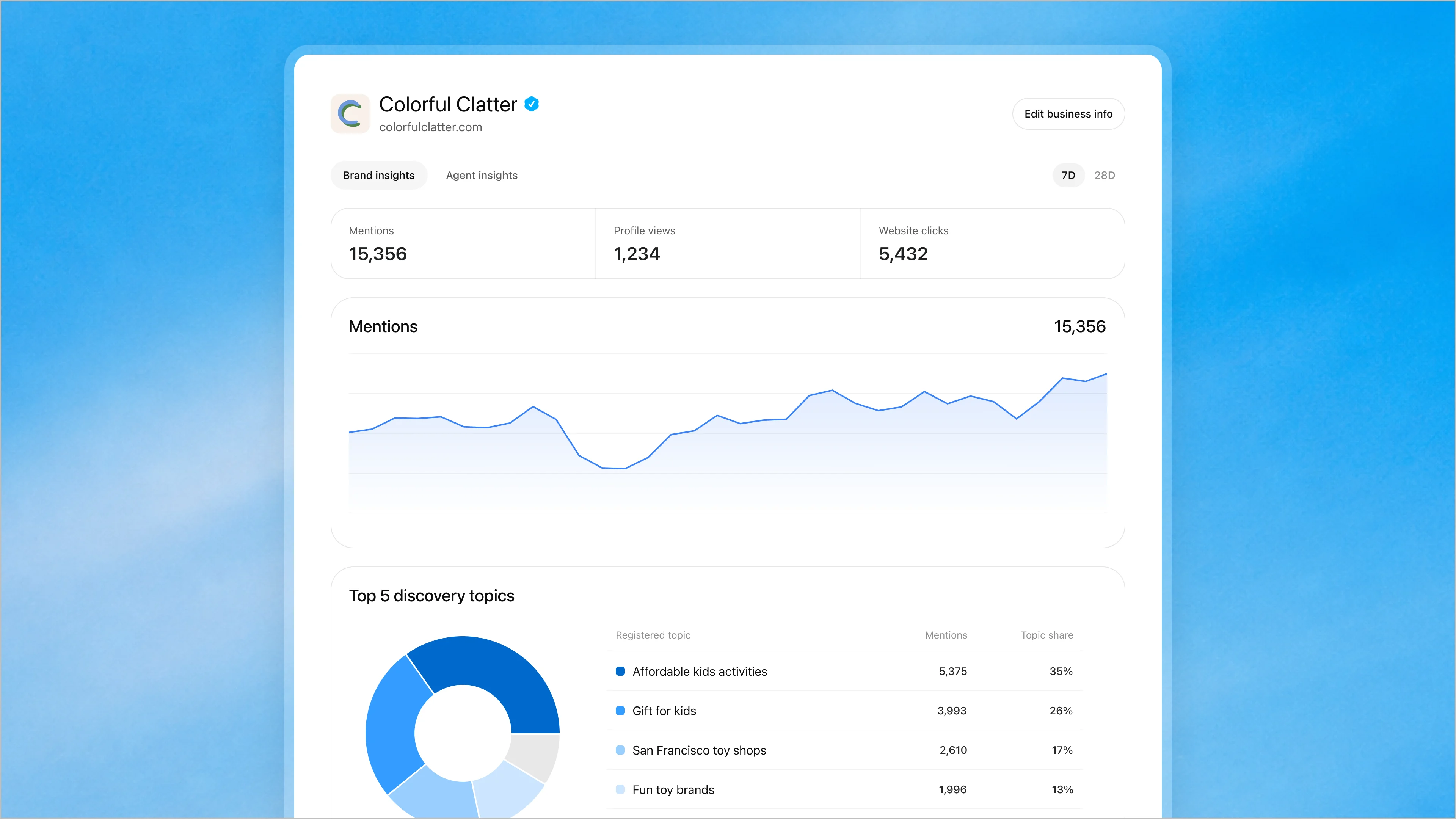
Source: OpenAI’s November 10 announcement. This is OpenAI’s product illustration, not GrowthX or customer performance data.
What you need before you start
You need a business OpenAI considers eligible, a ChatGPT account, and the documents to prove you can represent the business. Four product names get mixed up here, so it helps to separate them before you ask anyone for budget or access.
These are the four products:
- Businesses in ChatGPT: This is the umbrella beta OpenAI announced on November 10, 2026, covering both Business Hub and Business Agents.
- Business Hub: This is where you claim a profile, edit business details, add product feeds and read Insights.
- Business Agent: This is an optional, customer-facing chat that answers questions using information you supply, available to eligible U.S. ecommerce and online service businesses with a website.
- ChatGPT Business: This is OpenAI's workplace subscription that gives a team a shared ChatGPT workspace, and it is a separate product from Business Hub.
On cost, OpenAI publishes no price for Business Hub. The setup guide says you don't need an Ads account or a ChatGPT Enterprise agreement to claim an eligible business. Nothing in the Business Hub documentation ties claiming to a ChatGPT Business subscription.
Eligibility depends on industry, location, and OpenAI's verification and integrity checks, and claiming is initially open to eligible businesses with a website. OpenAI's pages don't name B2B companies, service-area businesses or businesses without a storefront as a category that is in or out.
The tests OpenAI does state apply to all of them. You need a website, a location where ChatGPT is available, and a verification that passes.
OpenAI's own Businesses in ChatGPT policy lists service area as a profile field. OpenAI doesn't explicitly say whether service-area businesses qualify to claim a profile, and its verification decides eligibility.
Business Agents are available to eligible U.S. ecommerce and online service businesses with a website that also meet the industry requirements in the Business Agents Policy. OpenAI doesn't separately confirm B2B eligibility, and it decides eligibility through its checks.
How to measure your visibility in Business Hub step by step
The seven-step workflow starts with confirming availability, claiming and verifying your business, and opening Insights to read mentions and clicks. Then compare clicks with your website analytics, audit what ChatGPT says, and correct what's wrong through your profile and website.
Step 1. Confirm Business Hub is available for your business
Business Hub claiming is live now for eligible businesses located wherever ChatGPT is available and the required verification is supported. Business Agents are narrower. They're live only for eligible ecommerce and online service businesses in the U.S. with a website. Anything beyond that is announced, not available, and OpenAI's only stated plan is to expand both to more markets and categories over time.
Two type-based limits matter in practice:
- Local stores and restaurants can currently claim only an existing U.S. listing.
- Eligible online businesses that can't find themselves may see an option to add a new profile.
OpenAI's policy also says it may decline businesses whose offerings or practices raise significant safety or integrity concerns, and may hold off on whole categories until safeguards exist. If you search Business Hub and see neither your listing nor an add option, that's your answer for now.
Step 2. Claim and verify ownership of your business profile
Claiming takes two separate approvals. OpenAI first verifies your connection to the business, then verifies your identity through Persona. You can't view Insights until OpenAI approves both checks.
The claim flow in the setup guide runs like this:
- Sign in to ChatGPT, open Business Hub from the sidebar and search for your business by name.
- Select the matching listing and confirm which ChatGPT account will manage it.
- Pick a verification method. The options are a code by SMS or automated call to the business phone, a code to the business email, a DNS TXT record on your domain, or a Shopify store connection.
- Wait for OpenAI's email with a decision or a request for more information. You can cancel the claim while it's under review.
- After the claim is approved, select Verify with Persona and submit what Persona asks for. That may include a government-issued ID, business registration information and proof that you're authorized to represent the business.
The blue check appears only after Persona approval, a step that is separate from the claim. Existing OpenAI Enterprise customers and advertisers can also claim through their OpenAI representative.
Check for these mistakes during verification:
- Mismatched records: The business name, address and any registration or tax number you give Persona must match your official business records.
- Impatient DNS checks: DNS changes take time to appear, so wait before you click Verify domain again, and copy the record's type, host and value exactly.
- Forwarded invitations: A personal claim invitation shouldn't be forwarded. The claiming admin adds teammates and grants agency access in Business Hub, and each person uses their own ChatGPT account.
- Assuming submission means approval: Submitting to Persona doesn't approve you, and Persona-gated features stay off until OpenAI approves.
- Assuming the brand covers locations: Each distinct brand is managed separately, and claiming the main brand doesn't claim its locations.
If someone else already claimed your business, open the profile, use the more options menu and select Dispute ownership, then verify through Persona.
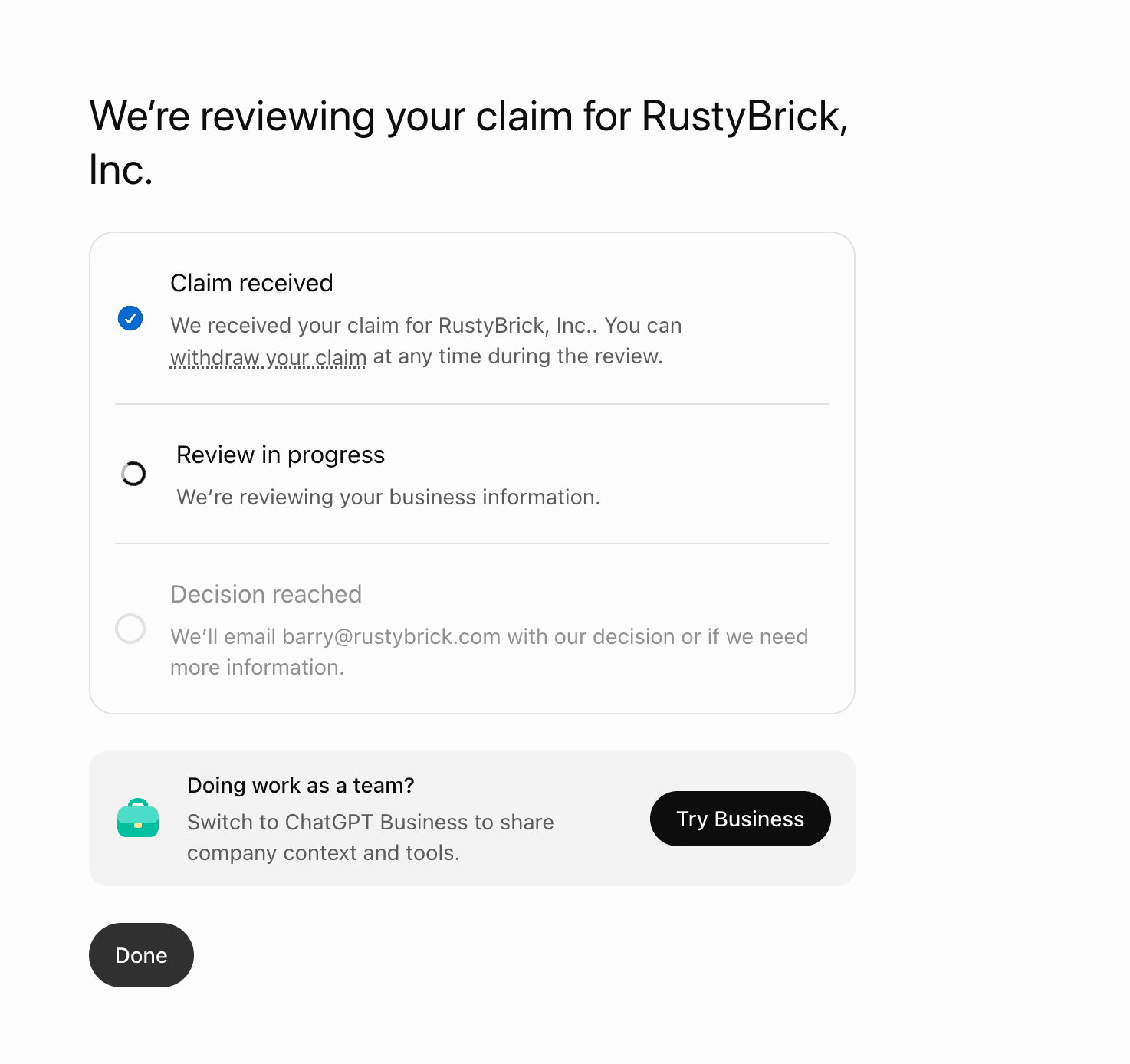
Submitting a claim is not an approval. This launch-day screenshot shows the review still in progress. Screenshot published by Barry Schwartz. Source: Search Engine Roundtable, November 10.
Step 3. Open the analytics dashboard
Insights live inside your business profile. After both approvals, open your business profile in Business Hub and locate its insights. Look first at whether the mentions and website clicks fields hold numbers or sit blank.
OpenAI doesn't state how long data takes to appear after verification. Barry Schwartz of Search Engine Roundtable used DNS for his claim on launch day and reported seeing no data yet. A blank field can reflect activity below the reporting threshold, ongoing data collection or unavailable reporting.
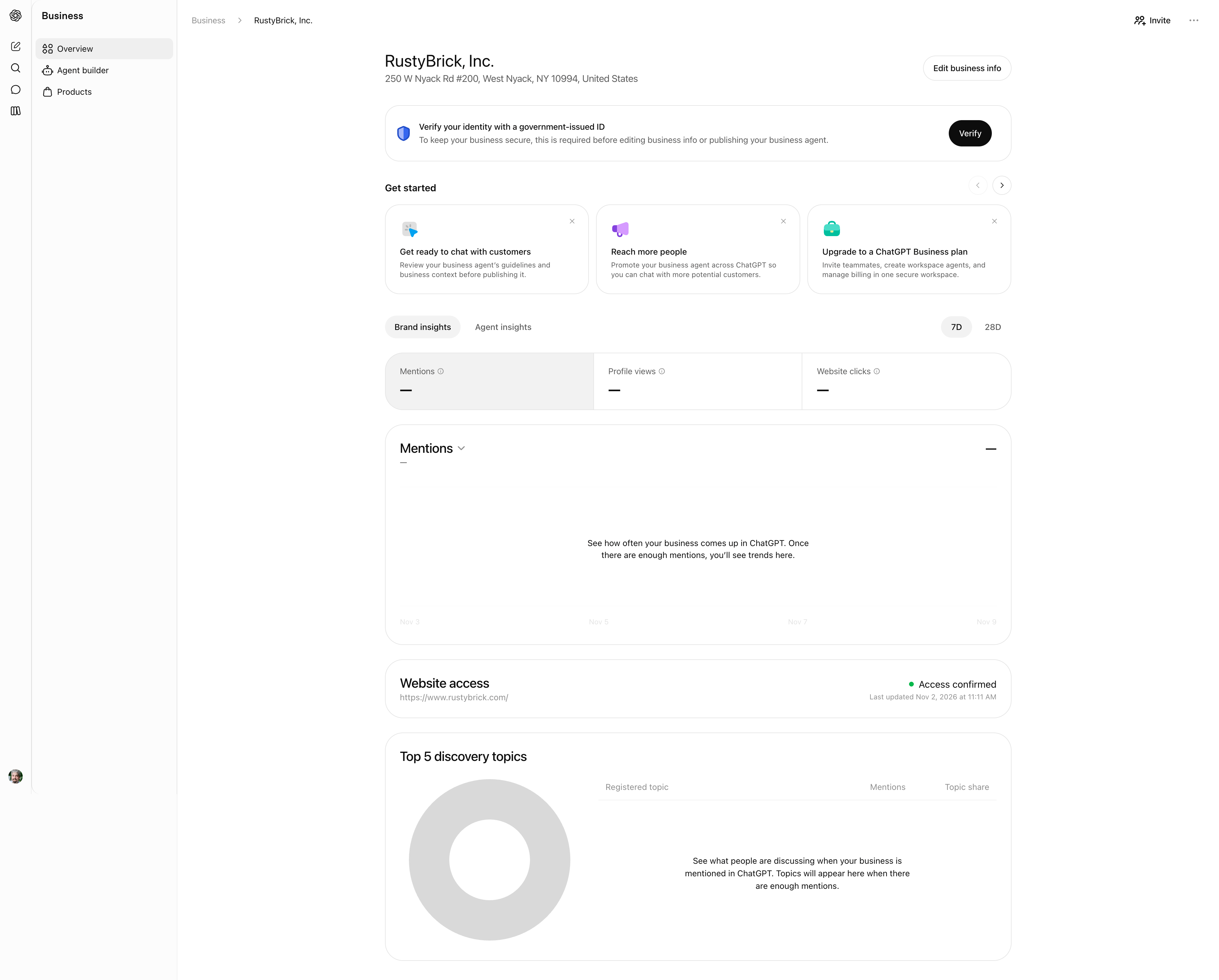
A launch-day account screenshot shows unavailable metrics as dashes, rather than zero. It also displays a separate identity-verification requirement. This is the publisher’s account, not GrowthX’s. Source: Search Engine Roundtable, November 10.
Step 4. Read mentions and clicks
A mention means different things depending on what kind of business you are:
- For an online business, a mention counts when ChatGPT references your website, and your brand name appearing alone doesn't count.
- For a local business, a mention counts when ChatGPT shows a result for that location, even if nobody opens the listing or visits the website.
That definition changes how you read the number. For an online B2B software company, a brand-only shortlist entry earns no mention, so the Business Hub count can undercount brand presence in answer text. For online businesses, treat it as a count of website-referenced appearances and nothing broader.
Website clicks count how often people click through to your website from ChatGPT. OpenAI doesn't document a click attribution window or refresh cadence. An early report on X said a recorded click doesn't confirm a website visit or a conversion.
Discovery topics group the themes in answers that mentioned or cited you. OpenAI says they don't reveal individual prompts or directly measure customer intent.
Read the three together, and treat any pattern as a hypothesis to investigate. Rising mentions with flat clicks can be a reason to review whether the cited pages give visitors a reason to continue.
Compare the cited topics, landing pages and GA4 behavior before drawing a conclusion. Rising clicks on a topic you didn't expect is a lead for your content plan. And a blank metric can reflect activity below the reporting threshold, data that is still collecting or reporting that is unavailable, so it doesn't mean zero activity.
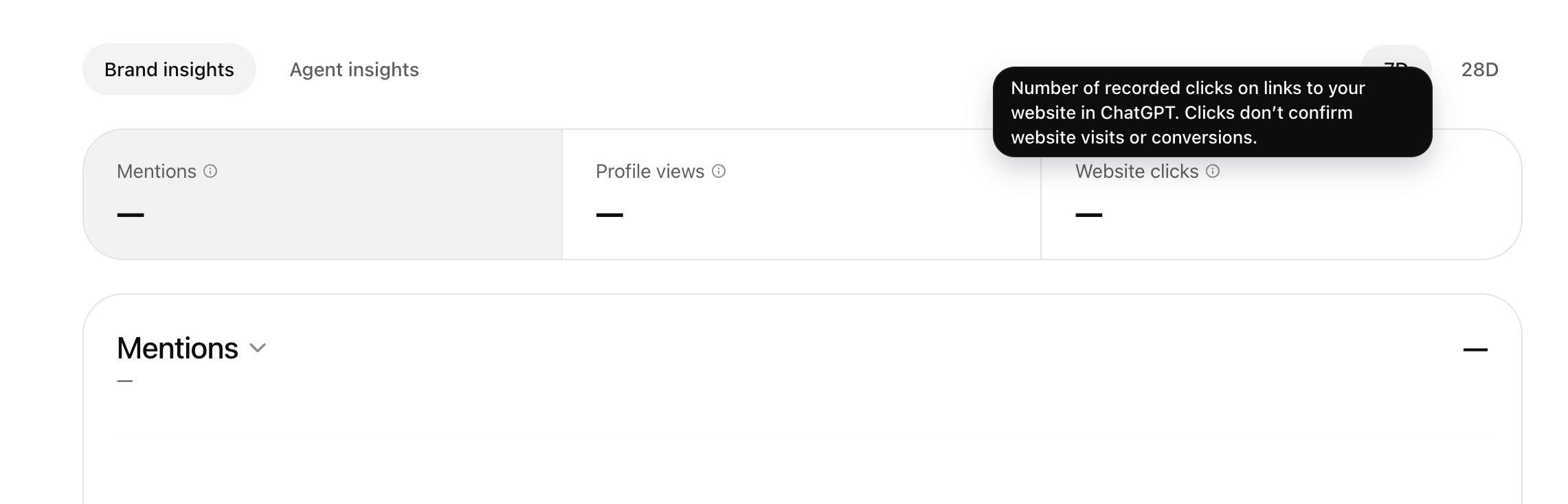
The website-clicks tooltip makes the measurement boundary explicit: a recorded click does not confirm a visit or conversion. Screenshot published by Barry Schwartz. Source: Search Engine Roundtable, November 10.
Step 5. Match Business Hub clicks to your website analytics
Put Business Hub clicks next to your ChatGPT sessions in GA4 and expect them to differ. A click is an event inside ChatGPT. A session is something your analytics tag records after a page loads, accepts consent and keeps its tracking parameters.
In GA4, Google added an AI Assistant channel on May 13, 2026, which sets the medium to ai-assistant when the referrer matches a recognized assistant such as ChatGPT. Also check Session source / medium for chatgpt.com.
Search Engine Land reports that referral information is missing from most ChatGPT clicks, which makes the utm_source=chatgpt.com parameter on ChatGPT links an important attribution signal.
The tag can break. In October 2026, an Adobe employee found links had lost the tag.
Across about 500 pages where ChatGPT had driven at least 5% of visits, comparing October 9–13 with the week before, ChatGPT traffic fell by about 31,000 visits a day while Direct rose by about 26,000.
OpenAI confirmed a bug, and the fix began rolling out on October 15. One agency report from that period said links in the sources panel and shopping results kept the tag while links inside the answer text lost it.
Several mechanisms keep clicks and sessions apart even when tagging works:
- Mobile apps and in-app browsers often strip the referrer, so untagged visits land in Direct.
- Consent banners can stop GA4 from firing before a visitor accepts.
- Redirects and slow page loads lose visitors between the click and the tag.
- Business Hub covers a rolling 28 days, so compare it with the same 28 days in GA4 and the same time zone.
Report the two numbers as two lines. When ChatGPT sessions in GA4 drop while Direct rises on the same pages, suspect tagging before you suspect visibility.
Step 6. Audit what ChatGPT says about your business
Business Hub tells you how often you appear, and you need a manual audit to learn what ChatGPT says. It's the part of the job we'd least want to skip.
We'd run it monthly with a fixed prompt set:
- Write 15 to 30 prompts across three groups. Include category questions a buyer asks before they know you, comparison questions that name you and a rival, and factual questions about your pricing, policies and offerings. Seed the set with your discovery topics.
- Run each prompt in a fresh, logged-out session and save the full answer and its cited sources.
- Log each factual error, each outdated fact and each competitor named where you aren't, with the source ChatGPT cited.
- Rerun the same prompts next month and track which errors recur.
Answers vary between runs, so log a pattern only when you see it in more than one run. Recurring errors with the same cited source are the ones worth fixing first.
Step 7. Correct outdated information with approved context
You correct what ChatGPT says by fixing the information you control, then waiting. After approval, you can edit your website, business description, category, logo, delivery policy and return policy, and connect a product feed with pricing and availability.
OpenAI reviews and publishes those changes. The setup guide says updates take time to appear in a listing or an answer, that a saved change won't show up in every answer immediately, and that ChatGPT may also use other sources. The Businesses in ChatGPT Terms go further. OpenAI may supplement, edit or replace your information from other sources, or decline to display what you submit.
A Business Agent answers customer questions in a labeled conversation, separate from ChatGPT's independent answers, using information you supply. It explains products and policies and links to your website, but it can't complete purchases, make bookings or check orders.
Preview the agent with a common customer question before you publish it, and update the information if the answer is wrong. Our Business Agent setup guide covers setup in detail.
When your audit shows ChatGPT relying on a bad third-party page, fix your own pages first. OpenAI's content reporting form covers content that may violate OpenAI's Terms of Use or applicable law. Reported domains may be reviewed by OpenAI's Model Quality team, which may apply filters to help keep ChatGPT from relying on unreliable sources.
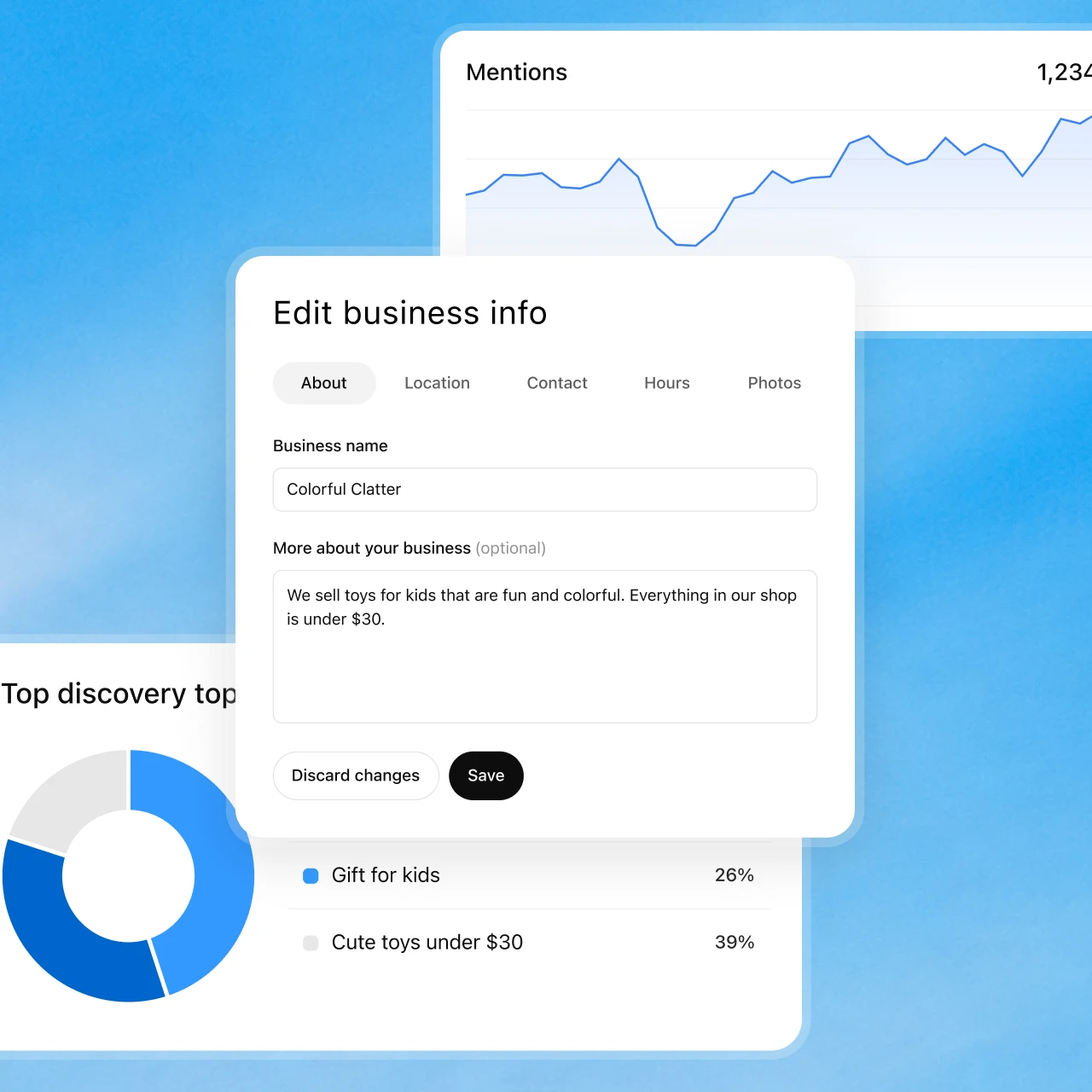
Official business-information review example. Supplying accurate facts is different from controlling ChatGPT’s independent recommendations. Source: OpenAI.
What the analytics do not show
Business Hub answers one question, which is how often ChatGPT references your website and sends clicks to it. The rest of what a board usually asks sits outside that.
These gaps are documented or follow from what OpenAI publishes:
- No prompt-level data: Businesses don't receive individual prompts or conversations, including Business Agent chats.
- No competitor benchmarks: OpenAI's Business Hub pages don't describe any competitor comparison.
- No impressions or rankings: The documented metrics are mentions, website clicks and discovery topics, with profile views shown only in the launch dashboard image.
- One engine: Business Hub covers ChatGPT and nothing else.
- No documented export: OpenAI's Business Hub pages describe no self-service data export.
- Incomplete counts: The setup guide says counts may be incomplete and thresholds hide low volumes.
For a board slide, present Business Hub as the ChatGPT line of an AI visibility report, labeled as a 28-day count from OpenAI. Put your audit findings and any multi-engine tracker data beside that line. A single "ChatGPT mentions" number standing in for AI visibility will mislead the room.
How Business Hub analytics compares with other visibility measures
Each measure comes from a different owner and counts a different event. This table sets them side by side:
| Source | Metrics | Engines covered | Owner |
|---|---|---|---|
| Business Hub Insights | Mentions, website clicks, discovery topics over 28 days | ChatGPT only | OpenAI |
| Google Business Profile Performance | Views, searches, calls, website clicks, directions, messages, bookings | Google Search and Maps | |
| Website analytics such as GA4 | Sessions and conversions by channel, including the AI Assistant channel | Any assistant whose referrer or UTM tag survives the click | Your team, on Google's tool |
| Third-party AI visibility trackers | Share of voice, citations, sentiment from a chosen prompt set | Multiple engines, varying by vendor, often ChatGPT, Gemini, Perplexity and Google AI surfaces | The tracker's vendor |
The trackers sample prompts the vendor or you choose, so their numbers describe that sample, not all of ChatGPT's traffic. Business Hub counts real activity but hides the prompts. GrowthX runs CheckThat, a public AI visibility index built on the prompt-sample approach. It illustrates prompt- and source-level visibility research, which differs from Business Hub's aggregate activity counts.
Troubleshooting common Business Hub issues
Use these checks for verification, reporting and correction issues:
- Verification fails: Follow the instructions in OpenAI's email, select Try again if it appears, and check that your name, address and registration number match official records. If you see Contact support, the listing is locked. Contact OpenAI Support if you can't retry or Business Hub still shows verification as incomplete after approval.
- The dashboard shows no data: Confirm OpenAI has approved your Persona submission. Then wait, because blanks can mean the threshold isn't met or data is still collecting. Contact OpenAI Support if a metric stays blank.
- Clicks don't match website analytics: Check the AI Assistant channel and chatgpt.com in Session source / medium, compare the same 28 days, and look for a Direct spike on pages that usually get ChatGPT traffic.
- Wrong information persists after a correction: Confirm OpenAI published the change, then rerun your audit prompts over the following weeks. If ChatGPT keeps citing an outside page, fix your own pages and report the source if its content may violate OpenAI's Terms of Use or applicable law.
When you contact support, include the step you were on, any error message and a screenshot with sensitive details removed. OpenAI Support won't delete, unpublish or hide a published profile as part of a setup or ownership request, and only unpublished drafts can be deleted.
Paying or optimizing to influence ChatGPT recommendations
You can't buy organic placement. OpenAI says ads don't influence answers, run on separate systems from the chat model, and give advertisers no way to shape, rank or alter responses. Ads appear labeled as sponsored, below or apart from the answer.
Claiming and Business Agents don't buy placement either. OpenAI's business page says claiming doesn't guarantee higher placement or sales, and the setup guide treats claiming, publishing an agent and advertising as three separate things. The paid path that does exist sits beside organic answers. You can sponsor your Business Agent and use it as the destination for ChatGPT Ads, and those placements carry a label.
That leaves you control over the inputs:
- The accuracy of your profile and product feed
- The content on your website that ChatGPT may cite
- Whether you publish a Business Agent
ChatGPT's independent recommendations stay outside your control. The misinformation risk runs both ways. OpenAI warns that ChatGPT can state wrong facts with confidence, and its terms say Business Agents may produce inaccurate responses. The Business Agents Policy bars you from instructing an agent to invent offerings, prices, credentials or reviews, and the terms make you responsible for correcting inaccurate material promptly. Your audit log is how you catch both kinds of error.
Announced expansion and possible future uses
Separate three things when you plan around Business Hub. These are what's live, what OpenAI has announced and what people are guessing.
- Live now are the beta of Businesses in ChatGPT, Business Hub claiming and Insights wherever ChatGPT is available and verification is supported, and Business Agents for eligible U.S. ecommerce and online service businesses.
- Announced, with no dates, OpenAI plans to expand Businesses in ChatGPT and Business Agents to more markets and business categories, build tools for organizations with more complex needs, and explore more ways for businesses to reach customers directly or through agents. Nothing OpenAI has published names new analytics features such as export or benchmarking.
Early users have filled in some detail, labeled here as firsthand reports. Kevin Indig wrote on X that after creating an account the hub showed mentions, citations and website clicks on a rolling 28-day window, and that only mentions referencing a business website were reported.
Juozas Kaziukėnas, founder of Marketplace Pulse, compared Business Hub to Google's Search Console on LinkedIn. The comparison is useful shorthand.
Possible future uses are our speculation. If OpenAI adds query-level themes or export, Business Hub could feed content planning directly the way Search Console feeds SEO. For now, discovery topics are the closest thing, and they belong in your prompt audit. Our Businesses in ChatGPT overview covers the wider program.
The manual loop in this piece runs on four inputs, which are Business Hub counts, GA4 sessions, your prompt audit log and the page fixes those reveal.
If your team keeps rebuilding the brief across disconnected tools, explore the GrowthX platform: shared company context, portfolio priorities, and production in one place, with your team making the calls. Start this month by claiming your profile and writing the first 15 audit prompts, so the 28-day numbers have a baseline when they arrive.