Until a business publishes its Business Agent, customers who find it in ChatGPT can't chat with one, and once the agent is live the terms make the business responsible for the accuracy of what it says. This guide takes an eligible business from an unclaimed ChatGPT listing to a published Business Agent that has already handled a round of realistic customer questions in preview. The path runs through Business Hub, two verification checks, the information and instructions you supply, a preview pass, and a Publish action that only your business can take.
OpenAI opened Businesses in ChatGPT in beta on November 10, 2026. Business Agents are live today only for eligible US ecommerce and online service businesses that have a website. This page covers implementation. Our Businesses in ChatGPT overview explains how the agent fits the wider offering.
Businesses in ChatGPT series: Overview · Claim and verify · Measure visibility · B2B and services · Update business information · Create a Business Agent (this article) · Search-console comparison and history
Business Agent, Business Hub and ChatGPT Business compared
Teams mix up these five names constantly, and the mix-up sends people to the wrong setup screen. Here is how OpenAI's documentation separates them:
| Name | What it is | Who builds or manages it | Who uses it |
|---|---|---|---|
| Businesses in ChatGPT | OpenAI's beta program of interfaces, tools and services for businesses, made up of Business Hub and Business Agents | OpenAI runs the program | Businesses that want to manage how they appear in ChatGPT |
| Business Hub | The interface for claiming a listing, editing business details, adding product feeds and viewing aggregated insights (setup guide) | The owner or an authorized representative, plus teammates and agencies that admin adds | The business itself |
| Business Agent | A customer-facing AI conversation that answers questions using information the business provides | The business or its authorized representative (Business Agents Policy). OpenAI may prepare a draft agent before the business chooses to use one | ChatGPT users who open the business's profile |
| ChatGPT Business | A self-serve workspace plan for teams, with Standard seats at $25 per user per month billed monthly or $20 billed annually, and a two-seat minimum (plan overview) | Workspace owners buy and assign seats | Employees inside the workspace |
| Workspace agents | Shared agents for repeatable internal work inside Business, Enterprise and Edu workspaces (workspace agents guide) | Workspace members with agent-building permission | Colleagues in ChatGPT or Slack |
The customer-facing Business Agent has no link to the ChatGPT Business subscription. You don't need a paid workspace, an Ads account or an Enterprise agreement to claim a business. If you came here looking for an internal agent your team uses, skip to the last section.
Confirm your business is eligible
Your business can create a Business Agent today if it meets five conditions:
- It is based in the US.
- It operates as an ecommerce or online service business.
- It has a website.
- It has passed both claim verification and Persona identity verification.
- It meets the industry requirements in the Business Agents Policy.
Claiming a profile has a wider reach than building an agent. Any eligible business located where ChatGPT is available can claim a profile, and eligibility depends on industry, location, and OpenAI's verification and integrity checks, according to the claim page. Local stores and restaurants can currently claim only an existing US listing. They can't add a new one. Some businesses will manage a profile without ever qualifying for an agent.
For B2B and service businesses, check how OpenAI's eligibility wording applies before considering cost and access requirements.
B2B and service businesses
OpenAI's pages don't name B2B companies as included or excluded. The relevant phrase is "online service businesses," which OpenAI lists as eligible for agents. A B2B software company that sells and delivers its service online is the closest fit to that wording. A consultancy or field-service firm that works offline isn't named anywhere.
For a B2B or service business, the practical test is whether the create-agent option appears after verification, because the deciding step comes later. OpenAI reviews both the business category and the agent's intended use before it allows publication, and it may decline a category or defer one until it can support it safely. Passing verification doesn't guarantee agent eligibility either.
Cost and access
OpenAI's help, product and policy pages list no fee, usage charge or plan requirement for creating or publishing a Business Agent, and they mention no waitlist. Publication alone doesn't authorize paid advertising, which, according to the Businesses in ChatGPT Terms, needs a separate advertising relationship with OpenAI. Existing Enterprise customers and advertisers can also claim through their OpenAI representative.
How to create a Business Agent in ChatGPT step by step
To create a Business Agent in ChatGPT, you claim your business in Business Hub, pass Persona verification, review the information and instructions the agent will use, test it in preview, then select Publish. Customers can chat with the agent only after you publish it.
Step 1. Set up or claim your business in Business Hub
Sign in to ChatGPT with the account you'll use to manage the business, open Business Hub from the sidebar, and search for your business by name (setup guide). Select the matching listing, confirm the managing account, and pick one of the verification methods ChatGPT shows you.
OpenAI documents four ways to prove your connection to the business:
- Business phone: You choose a text message or an automated call, select Get code, and enter the code sent to the number on the listing.
- Business email: You select Get code and enter the code sent to the email address associated with your business.
- Website domain: You add the TXT record ChatGPT shows to your DNS settings, copying the type, host and value exactly, then return and select Verify domain. DNS changes can take time to show up, and your domain admin may need to add the record for you.
- Shopify store: You select Connect Shopify, review the permissions, and sign in to the store for the business you're claiming.
OpenAI reviews the claim and emails a decision or a request for more information. Approval gets you into Business Hub, but you can't publish profile changes, connect a product feed, view insights or create an agent yet.
Those actions need a second check. Select Verify with Persona, then Continue to Persona, and submit what Persona asks for, which may include a government-issued ID, business registration information and proof that you can represent the business. The blue verified check appears on your profile only after OpenAI approves this Persona step. Claiming alone doesn't earn it.
Several situations change this flow:
- Locked listing: A "Contact support" button means the listing is locked, so you request access through support.
- Claim invitation: You open the personal link in the email and sign in with the address that received it.
- Business not found: An eligible online business may see an option to add itself as a new listing.
- Already claimed: You open the profile, choose the ••• menu, select Dispute ownership, and verify with Persona.
- Multiple brands: Each brand is claimed separately, and claiming a parent brand doesn't claim its locations.
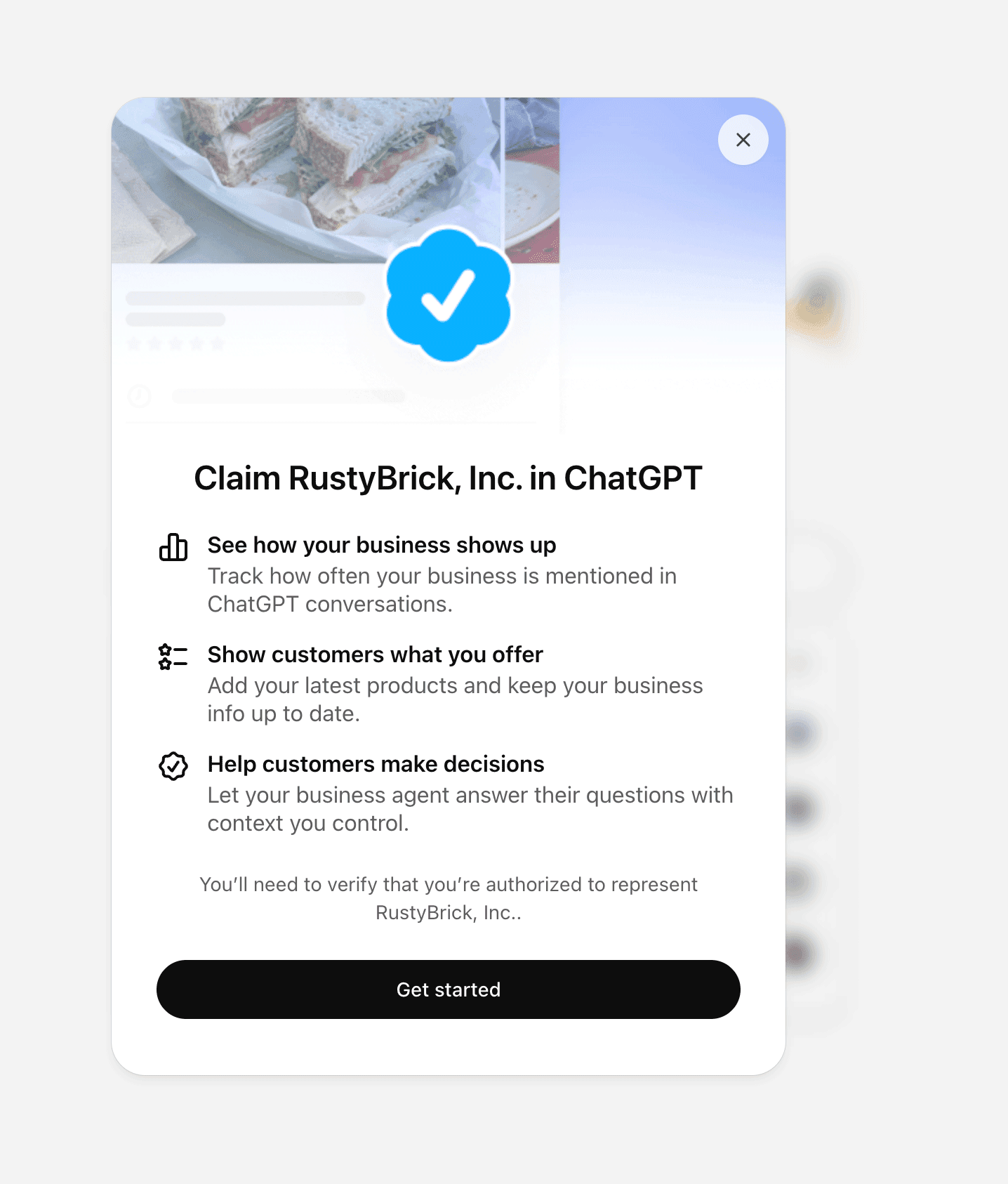
The claim screen asks the person to verify that they are authorized to represent the business. Screenshot published by Barry Schwartz. Source: Search Engine Roundtable, November 10.
Step 2. Add the information your agent draws on
The agent answers customers using information you provide, so the quality of your profile and catalog sets the ceiling on answer quality. After both approvals, open your profile in the Business tab and update your website, business description, product or service category, logo, delivery policy and return policy. Optional details such as a cover photo sit in the same place.
You can supply product data through a feed:
- Connect a Shopify feed to share product details, prices and availability.
- Upload a CSV that follows OpenAI's product feed specification and its required fields, linking the file if you host it at a URL.
Products in the feed must follow OpenAI's Commerce policies. Shopify is optional, and if a Shopify connection already created a draft agent for you, you open that draft and keep going.
OpenAI's documentation stops there on inputs. The Business Agents Policy refers to website content and files as material a business supplies, but no help page describes a document upload, a knowledge base or a website crawl for Business Agents. Plan around the profile, policies and feed.
Accuracy is your responsibility, contractually. The terms make the business responsible for the agent's content, configuration and testing for accuracy, and they state that Business Agents may still produce inaccurate or unexpected responses.
The Businesses in ChatGPT policy adds that OpenAI doesn't verify every detail you submit. If your team leaves an outdated return policy in the profile, customers may get an outdated answer.
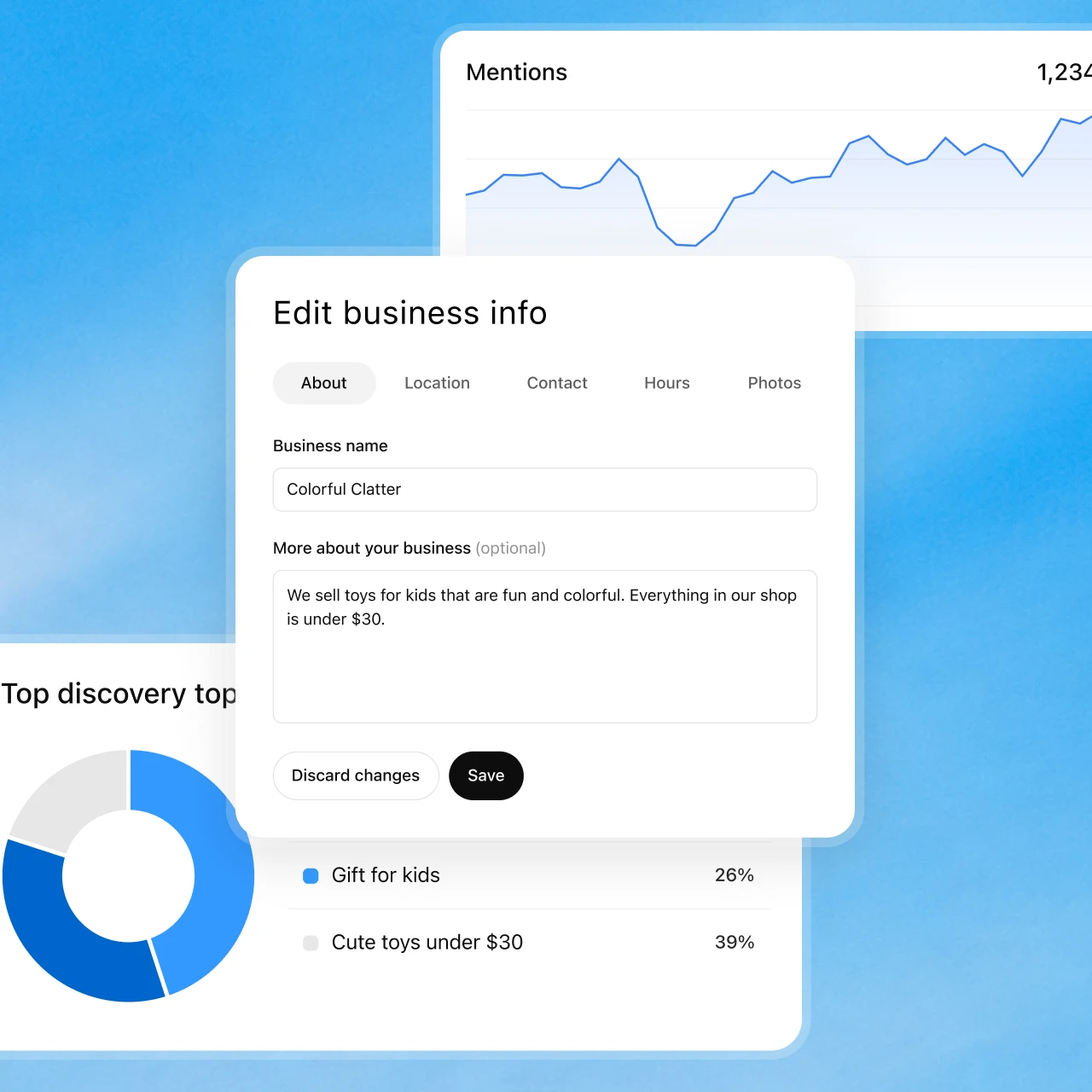
Official business-information review example. Supplying accurate facts is different from controlling ChatGPT’s independent recommendations. Source: OpenAI.
Step 3. Set instructions, tone and boundaries
You write instructions for how the agent should answer customers, and those instructions must follow the Business Agents Policy. The terms describe your inputs as instructions, preferences and other inputs, limited to the functionality and settings OpenAI makes available.
The policy sets boundaries you can't override:
- AI disclosure: The agent must make clear it is AI representing your business, and can't pose as a human, an independent adviser or an OpenAI-endorsed service.
- Truthful claims: You can't instruct it to invent offerings, prices, availability, credentials, reviews, guarantees or results, or to hide material fees and conditions when they matter to the question.
- Professional limits: The agent can explain your offerings but can't give advice that legally requires a license, claim professional credentials, or automate high-stakes decisions without human review.
- No pressure: It can't create false urgency, exploit vulnerability, or keep pushing after someone declines.
- Personal data: It can't ask for unnecessary or high-risk information such as health details, government IDs or financial credentials, and it can't share a user's details or submit a form, booking or purchase without explicit authorization through an approved feature.
- Safety: You can't instruct it to ignore or downplay a user's immediate safety concern.
- Links: Every link must be relevant and lead where it says it leads.
On tone, the policy lets you describe your business in your own voice as long as concrete claims don't mislead. OpenAI documents no separate tone setting, so voice lives in your instructions. OpenAI also documents no handoff or escalation to a human for Business Agents. If customers need a person, your instructions and your website have to point them to one.
Some things stay outside your control entirely. Claiming doesn't give you control over ChatGPT's independent recommendations, and advertising doesn't influence them. OpenAI may create and configure a draft agent for your business, and it can suspend or remove an agent and ask for changes.
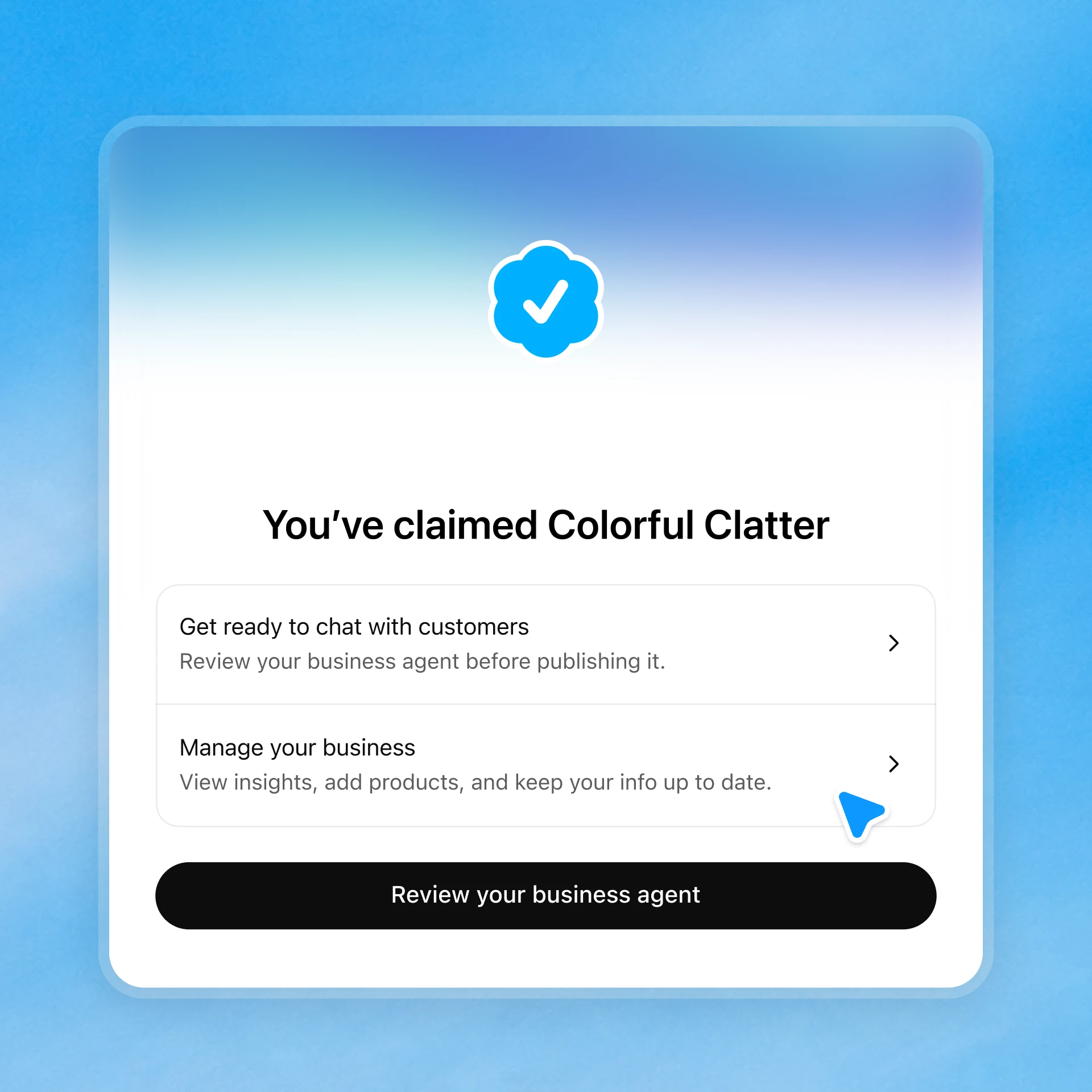
The confirmation offers separate actions to review the agent and manage the business. A claimed profile does not mean an agent is already published. Source: OpenAI.
Step 4. Test the agent in preview
OpenAI's documented test is simple. Preview the agent with a question customers often ask, such as whether a sale item can be returned, and if the answer is wrong, update the information or instructions and test again. Previewing doesn't publish the agent.
That single question is the minimum. We'd run a fixed set of prompts before every publish and after every edit, covering five areas:
- Pricing: Ask for the price of a specific product, a bundle, and an item that's out of stock, then compare each answer with your feed.
- Policy edge cases: Ask about returns on sale items, international delivery, or a cancellation outside the window.
- Actions it can't take: Ask it to place an order, book a slot or check an order status. The agent can't do any of these today, so the right answer points to your website.
- Off-topic and adversarial prompts: Ask about a competitor, ask for medical or legal advice, or push for a discount after declining.
- Sensitive data: Offer fictitious card or identity details unprompted and watch whether the agent asks for more.
Write the expected answer next to each prompt before you run it. Grading against a written answer catches drift that a quick read misses.
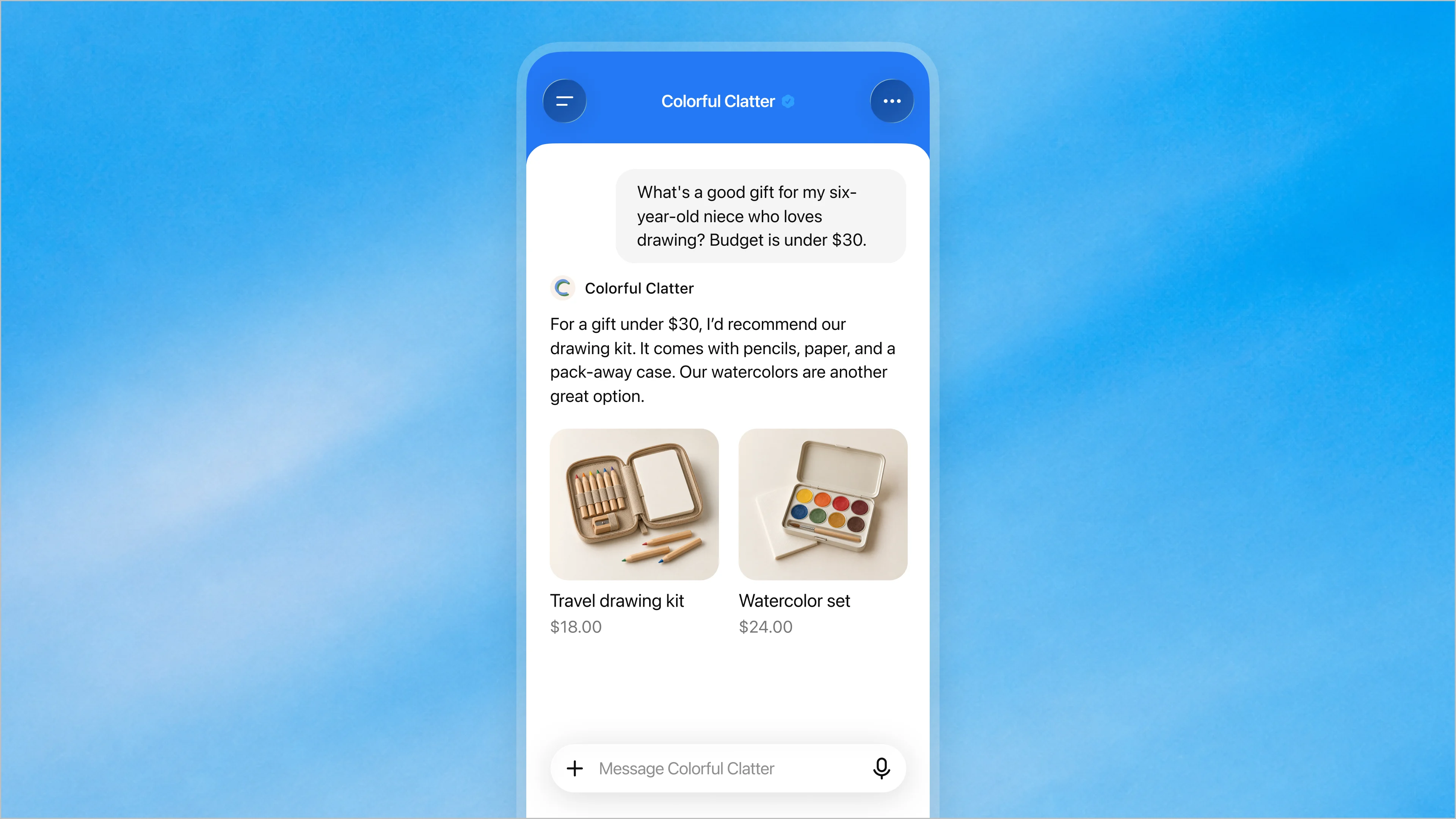
Source: OpenAI. Illustrative product experience; not an independently tested customer outcome.
Step 5. Publish the agent and confirm it is live
When the preview answers hold up, open your business in the Business tab, review the agent, and select Publish. Publishing is a separate, optional step, and customers can chat only with a published agent. OpenAI checks the business category and the agent's intended use before it allows publication, and it documents no timeline for that review.
Customers reach the agent through your profile:
- When your business appears in a ChatGPT answer, people can click through to its profile, and if an agent is available they can choose to start a conversation (launch announcement).
- The conversation is labeled, kept separate from the customer's original chat, and distinct from ChatGPT's independent answers.
- OpenAI publishes no direct URL or in-app search path for an agent.
To confirm the agent is live, ask ChatGPT a question your business is likely to appear in, open your profile from the answer, and check that the chat option shows. If you sponsor the agent through ChatGPT Ads, sponsored placements are a second route in, and they're labeled as sponsored.
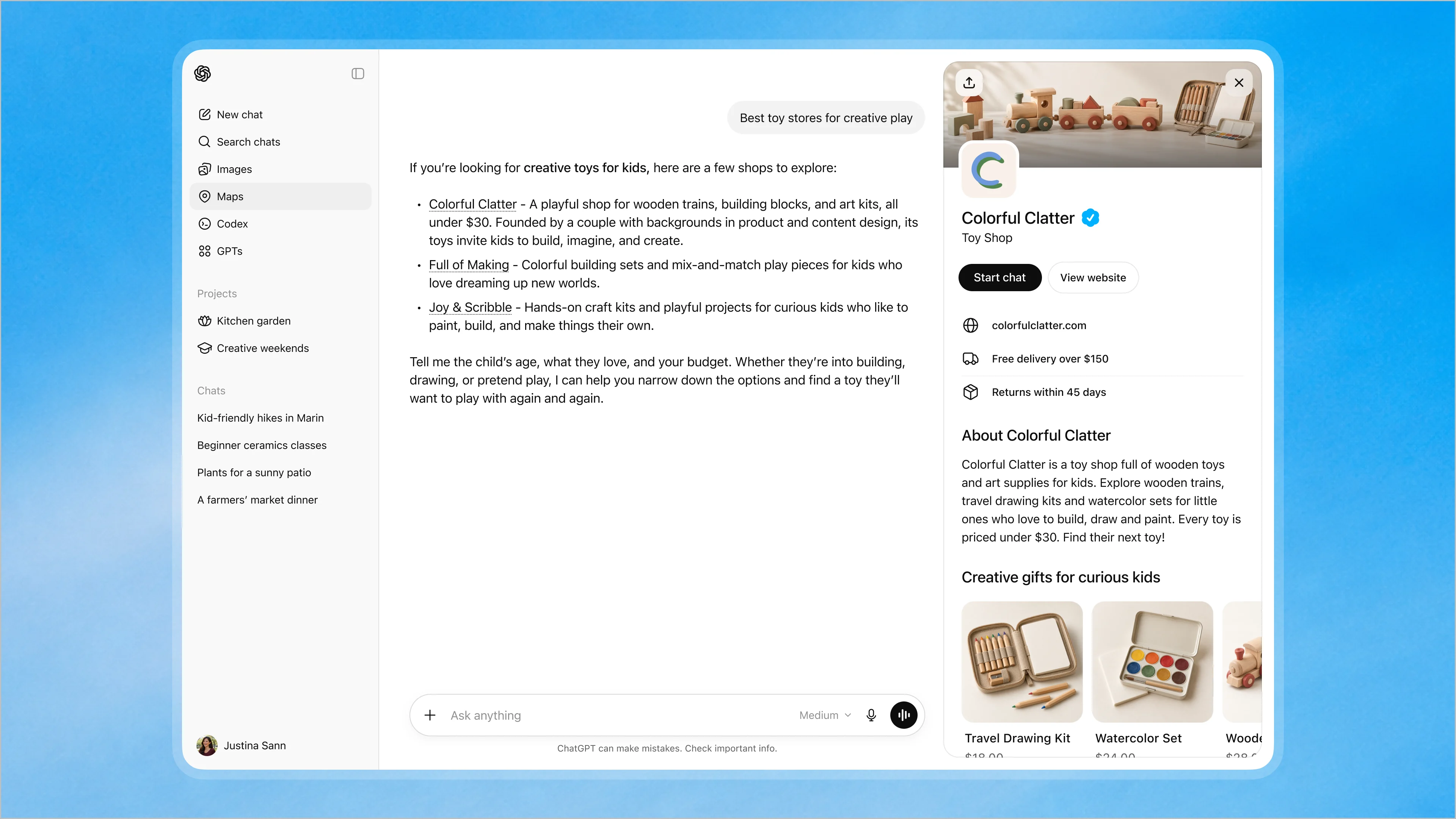
The business profile presents a route to the agent conversation alongside a route to the website. OpenAI’s product illustration. Source: OpenAI, November 10.
Run these checks before launch
Every check below maps to a documented rule or limit. Run all of them on the final draft, because the policy applies whenever you update the agent, not only at creation:
- Factual accuracy: Product names, descriptions and categories in the agent's answers match your feed and profile word for word on the facts.
- Pricing and policy answers: Prices, delivery terms and return conditions match what your website shows today, with fees and conditions stated when a question touches them.
- Escalation path: Instructions send customers who need a person to a named contact route on your website, since OpenAI documents no in-product human handoff.
- Banned claims: No answer invents guarantees, reviews, credentials or results, and none implies licensed advice.
- AI disclosure: The agent identifies itself as AI representing your business when asked.
- Privacy and data handling: The agent doesn't ask for health details, IDs or payment credentials, and doesn't promise to pass details to your team. Businesses never receive customer conversations, including Business Agent chats.
- Links: Every link opens the page it describes.
- Brand voice: Answers sound like your business without overstating anything concrete.
What a Business Agent can and cannot do today
OpenAI's documentation draws a clear line between what ships now and what it has only signaled. Keep these three groups apart when you brief leadership.
Current capabilities
As of November 10, 2026, a published Business Agent explains your products and policies and links to your website, according to the setup guide. It cannot complete purchases, make bookings or check a customer's order, so customers finish those on your website. Customers can ask questions, compare products and find what fits. You can sponsor the agent as a ChatGPT Ads destination. Central management across a parent company's brands and locations isn't available.
Announced expansion
The launch announcement says OpenAI plans to expand Businesses in ChatGPT and Business Agents to more markets and business categories, and to build tools for organizations with more complex needs. OpenAI gave no dates for any of these. The claim page adds that agent access will expand to more types of businesses over time, also undated.
Possible future uses
Beyond that, OpenAI says only that it will explore more ways for businesses to connect with customers, directly or through agents, in ChatGPT and beyond. Transactions, bookings and order lookup inside a Business Agent haven't been announced. Treat any plan that depends on them as speculative until OpenAI documents them.
Maintain the agent after launch
Maintenance comes down to keeping inputs current, retesting after each change, and reading the aggregated insights OpenAI provides. You edit profile details in the Business tab. OpenAI reviews and publishes those changes, updates can take time to reach listings and answers, and ChatGPT may also draw on other sources about your business. A saved change won't show up in every answer right away.
You won't get transcripts. OpenAI doesn't share user conversations or Business Agent chats with businesses. What you get in Insights is aggregate activity over the past 28 days:
- Mentions: For an online business, a mention counts when ChatGPT references your website, and the brand name alone doesn't count.
- Website clicks: Clicks from ChatGPT through to your website.
- Discovery topics: Common themes in answers that mentioned or cited you, which don't reveal individual prompts or measure intent.
Insights appear only once activity crosses reporting thresholds. A blank metric can mean the threshold hasn't been met or data is still being collected, so it doesn't necessarily mean zero.
Ownership needs one decision up front. The admin who claimed the business can add teammates in Business Hub and grant an agency access to manage the business or its agent, and each person uses their own ChatGPT account. Whoever owns pricing and policy changes on your website should also own the agent's profile and feed, and should rerun the Step 4 prompt set after each edit.
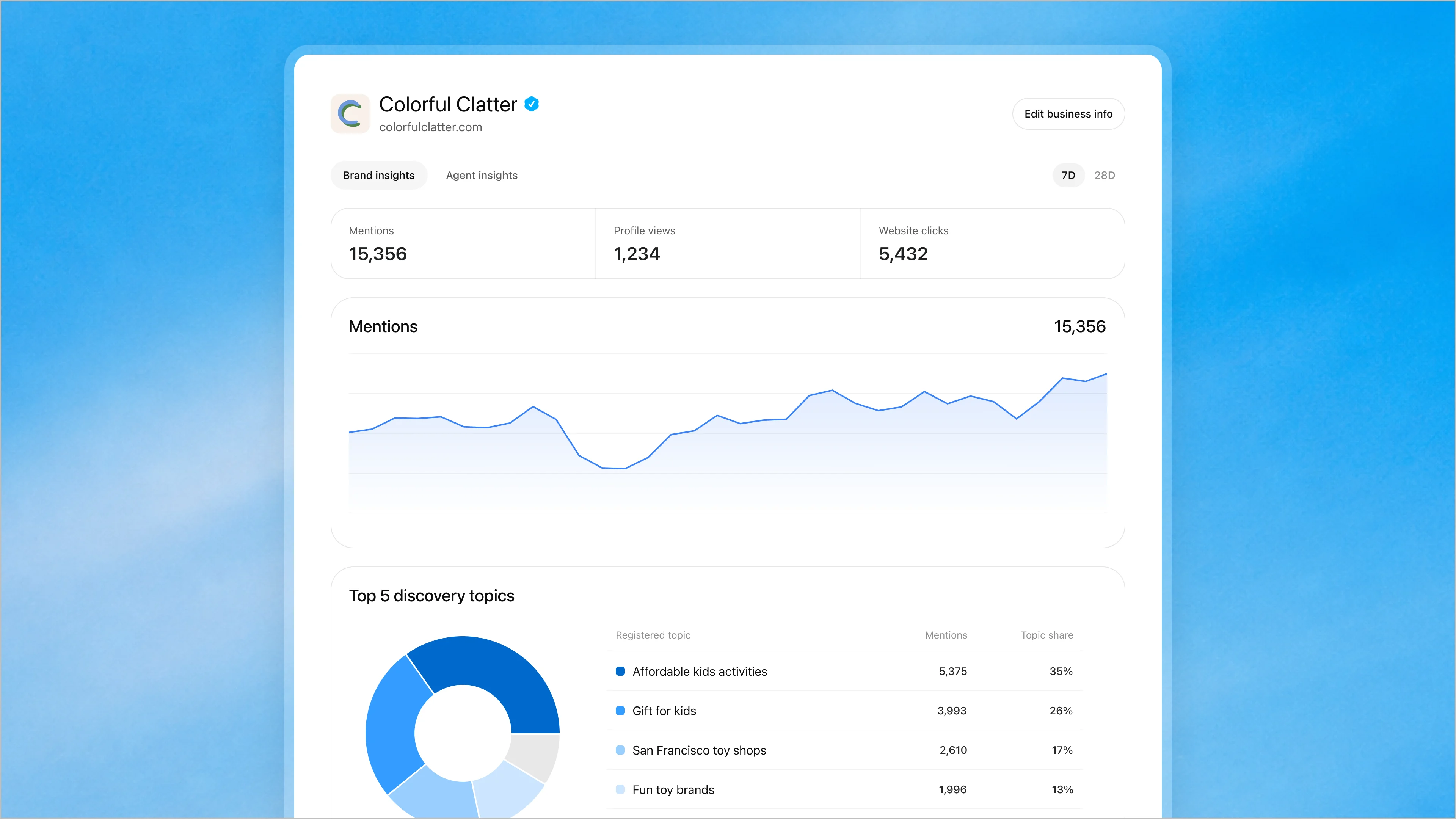
Source: OpenAI’s November 10 announcement. This is OpenAI’s product illustration, not GrowthX or customer performance data.
Troubleshoot common setup problems
Most setup failures trace back to verification. OpenAI's setup guide documents these fixes:
- Can't create an agent: Check that you're signed in to the claimed profile and that Persona verification shows as approved. Agent creation stays blocked while verification is pending or after it fails.
- Persona check failed or expired: Follow the email's instructions, select Try again if it appears, and make sure your business name, address and any registration or tax number match your official records.
- Verification still shows incomplete after approval: Contact OpenAI Support with the step you were on, any error message, and a screenshot with sensitive details removed.
- Review taking a while: Review time varies, so wait for the decision before resubmitting. You can cancel a claim or a Persona submission while it's under review.
- Agency invitation blocked: Contact OpenAI Support for options, and don't forward your personal claim invitation.
- Agent not appearing: Confirm you selected Publish, because previewing and creating don't publish. Then confirm the business cleared OpenAI's category and intended-use review.
- Outdated answers: Update the profile or feed, allow time for OpenAI's review, and remember that ChatGPT may draw on other sources too.
- Preview and live behavior differ: OpenAI documents no difference between the two modes, so rerun your prompt set against the live agent and fix the underlying information or instructions.
Search Engine Roundtable's writer used DNS for a business claim and reported seeing no data yet. A blank dashboard alone doesn't identify the cause: check Persona approval and reporting thresholds.
Build an internal workspace agent instead
Workspace agents are the internal product, and they're generally available in ChatGPT Business, Enterprise and Edu as of OpenAI's May 22, 2026 release notes. They handle repeatable team work such as reviewing leads, summarizing support requests or generating reports, and customers never see them.
Admins control access first. Workspace agents are off by default for Enterprise workspaces, and owners turn on four role-based controls covering running agents, building them, publishing to the workspace directory, and publishing with agent-owned connections (workspace agents guide). Users see only agents they have permission to access.
Building happens from Agents in the sidebar:
- Create: Select Create, write a prompt or choose Start blank, review the draft plan, select Build this agent, then refine and select Create. Templates are available under Browse templates.
- Connectors: Add apps such as Google Drive, Google Calendar, Slack and SharePoint, plus skills, files and custom MCP servers. Files cap at 512 MB each and 10 GB per agent.
- Approvals: Write actions default to Always ask during a run, and builders can add action constraints per app.
- Preview: Select Preview, test with a sample prompt, and adjust before you select Create.
- Schedule: Select Add schedule, then pick the channel, schedule type and frequency.
- Sharing: Choose Private to me, anyone at your organization with the link, or publish to the organization directory.
Runs have consumed credits since July 6, 2026, when OpenAI ended the free period and started credit-based pricing, according to the Business release notes. If an internal agent is what you need, ask your workspace owner to enable agent building for your role, then open Agents, select Create, and start with the one weekly task your team repeats most.