Claiming your business in ChatGPT is a one-time task, but keeping its hours, offerings, prices and policies accurate is the work that continues afterward, because ChatGPT can answer from your profile, your product feed, your website and other sources at once. This guide covers how to update business information in ChatGPT once you already control the listing. If you haven't claimed it yet, start with OpenAI's claiming instructions.
Businesses in ChatGPT series: Overview · Claim and verify · Measure visibility · B2B and services · Update business information (this article) · Create a Business Agent · Search-console comparison and history
Know which ChatGPT business feature you are updating
OpenAI uses four similar names for four different things. Edits made in one of them don't change the others. The launch announcement introduced Businesses in ChatGPT in beta on November 10, 2026, and the Businesses in ChatGPT Terms define the parts. The table below separates them:
| Name | What it is | What you update there |
|---|---|---|
| Businesses in ChatGPT | OpenAI's offering of interfaces, tools and services for businesses, including Business Hub | The umbrella product. You don't edit it directly |
| Business Hub | The interface for creating, claiming and managing a business listing, opened from the ChatGPT sidebar | Profile details, product feeds, insights, team access |
| Business Agent | A customer-facing AI experience that talks with users on behalf of your business, in a labeled conversation separate from ChatGPT's own answers | Agent instructions and the business information it answers from |
| ChatGPT Business | A self-serve workspace subscription for teams, renamed from ChatGPT Team on August 29, 2025 | Workspace name, members, seats, billing, and the context your own team uses in chats |
You don't need a ChatGPT Business subscription, an Ads account or an Enterprise agreement to claim a business. The one documented link between the two is team access, covered below. Workspace agents, which teams build for internal tasks in ChatGPT or Slack, are a separate feature from the customer-facing Business Agent.
Prerequisites for editing business information
You need an approved claim, approved Persona identity verification and an account authorized to manage the business. Business Hub invitations and workspace roles control different kinds of changes.
OpenAI's setup article says Persona approval is required before you can publish changes to business information, connect a product feed, view insights or create a business agent. Submitting to Persona doesn't count as approval. Verification can ask for a government-issued ID, business registration information and proof that you're authorized to represent the business.
Current availability depends on business type and location. Claiming is open to eligible businesses located where ChatGPT is available, initially those with a website, and OpenAI weighs industry, location, and its own verification and integrity checks. Local stores and restaurants can currently claim only an existing U.S. listing, while an eligible online business may see an option to add a new one.
Business Agents have narrower requirements. They're available to eligible ecommerce and online service businesses in the U.S. with a website, and the business must also meet the industry requirements in the Business Agents Policy. Some businesses can manage a profile without qualifying for an agent.
OpenAI doesn't state whether B2B or offline service businesses in general are eligible. OpenAI doesn't publish a list of eligible categories, so the practical test is what Business Hub offers you when you search.
An online service business in the U.S. with a website must also meet OpenAI's industry requirements to qualify for an agent. Existing OpenAI Enterprise customers and advertisers have a second route. They can claim through their OpenAI representative or account executive.
On announced expansion, OpenAI says it plans to bring Businesses in ChatGPT and Business Agents to more markets and business categories over time, and to build tools for organizations with more complex needs. The announcement names no markets, categories or dates. Some functions aren't available today, including central management of a parent brand's locations and an agent that completes purchases or bookings.
Who has permission to make changes
Business Hub and ChatGPT Business workspaces have separate permission models. In Business Hub, the admin who claimed the business can add teammates and grant an agency access to manage the business or its agent, and each person signs in with their own ChatGPT account.
If the business was claimed inside a ChatGPT workspace, invitees may need to be members of that workspace. Don't forward a personal claim invitation to share access. If an agency invitation is blocked, contact OpenAI Support.
Workspace roles control the subscription itself. The Business roles article and its Enterprise and Edu counterpart set these permissions:
| Role | ChatGPT Business | ChatGPT Enterprise and Edu |
|---|---|---|
| Member | Can invite new Members. Can't remove users or view billing | Can't invite or remove members, manage groups or view billing |
| Admin | Invites Members, cancels invitations, removes users, views plan information, sets spend controls, manages Workspace settings. Can't change roles, invite Admins or Owners, view invoices or manage Identity & Provisioning | Invites members, removes users, manages groups, views plan information. Can't manage workspace settings, change roles or view invoices |
| Owner | Everything, including role and seat-type changes, invoices and Identity & Provisioning | Everything, including workspace settings, invoices, identity settings and custom roles |
Where business information lives in ChatGPT
Business information sits in about a dozen places, and only some of them shape what customers see. The rows below the website line affect your own team's chats, not public answers:
| Location | What it holds | Who edits | What it affects |
|---|---|---|---|
| Business Hub profile | Website, description, product or service category, logo, delivery and return policies, cover photo | Claiming admin and invited teammates, after Persona approval | Your ChatGPT profile and, after OpenAI review, answers about your business |
| Product feed | Products, prices, availability, seller details | Business Hub users, or your commerce team through direct feeds | Product discovery in ChatGPT and what your Business Agent can explain |
| Business Agent knowledge | Instructions plus the business information you provide, such as product details and return policy | Business Hub users with agent access | Conversations customers start with your published agent |
| Workspace settings | Workspace name, members, seats, billing details | Owners, plus Admins for some settings | Your team's workspace and invoices |
| Custom instructions | Personal preferences, up to 5,000 characters | Each member | That member's chats |
| Project Instructions | Rules and guidance for a project | Project owner and editors | Chats inside that project |
| Project Files | Reference documents, up to 40 per project on Business | Project collaborators | Chats inside that project |
| Custom GPTs | Instructions and up to 20 knowledge files | GPT builder, per workspace permissions | Chats with that GPT |
| Memory | Saved details from past chats | Each member, unless the workspace owner turns Memory off | That member's chats |
| Your website | Pages OAI-SearchBot can crawl | Your web team | ChatGPT search results and citations |
| Third-party listings | Reviews, ratings, local listings from other providers | The listing platform and you, where you control the listing | Answers that draw on those providers |
How to update your business information step by step
Sign in with an authorized account, edit the profile, refresh the feed and the agent, let OpenAI review and publish, then make your website and listings agree with what you submitted. OpenAI's setup article is the reference for each step.
Step 1. Sign in to Business Hub with an authorized account
Sign in to ChatGPT with the account that claimed the business or received a teammate invitation, then open Business Hub from the sidebar and select your profile. OpenAI's help text calls the same area both Business Hub and the Business tab.
If the business was claimed inside a ChatGPT workspace, invitees may need to be members of that workspace, so a practical first check (our suggestion, not an OpenAI step) is to confirm you're signed in to that workspace.
You should land on your business overview. A few screens point to an access problem instead:
- A "Complete verification with Persona" prompt in the overview means verification isn't finished. Select Verify and follow the Persona steps.
- A listing that shows "Contact support" is locked. Select it to request help with access.
- Business Hub still showing verification as incomplete after you were told it was approved is a support case. Include the step you were on, any error message, and a screenshot with sensitive information removed.
- A profile someone else already claimed needs the ownership route. Open it, select the more options menu (•••), choose Dispute ownership, and verify with Persona.
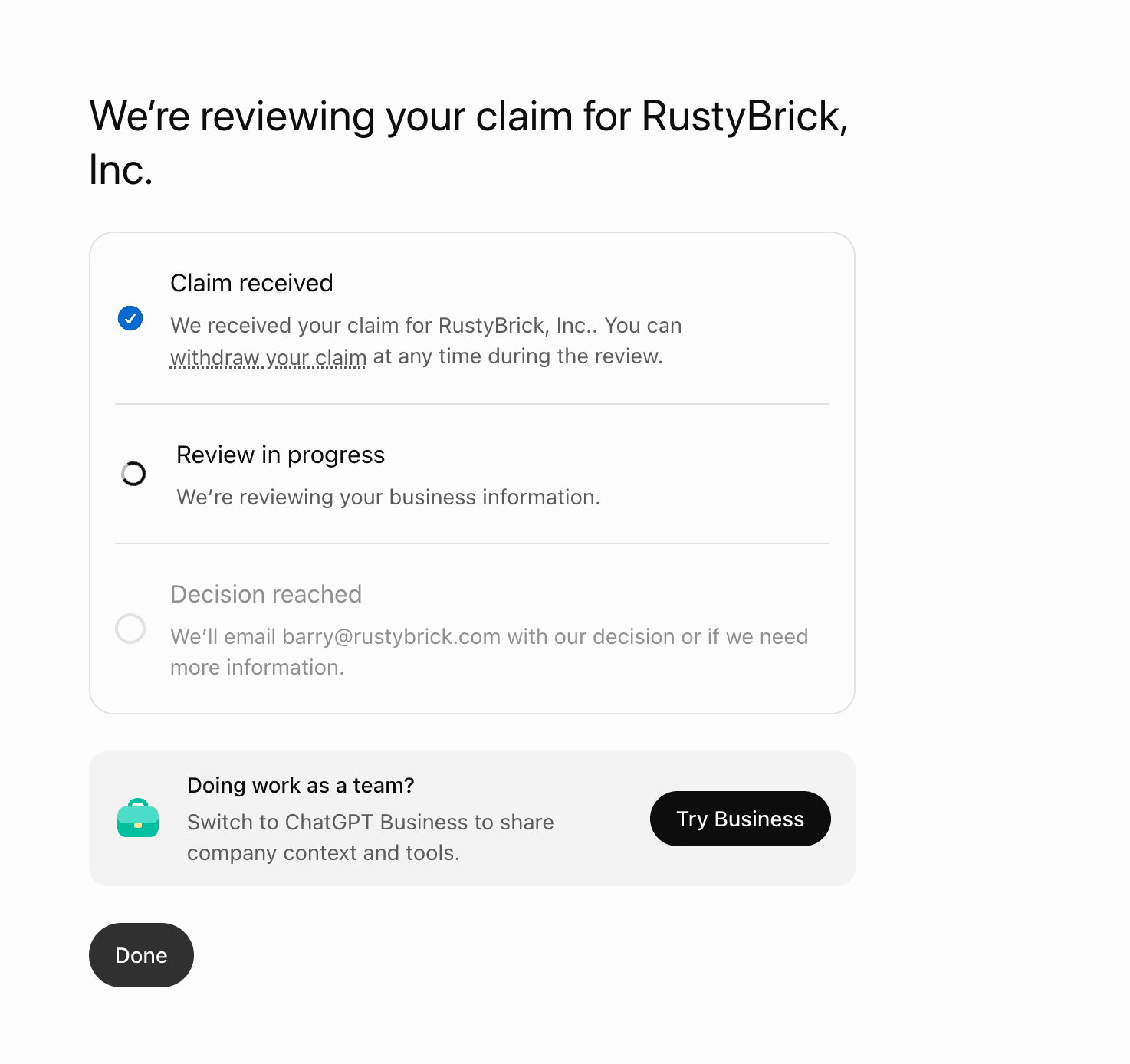
Submitting a claim is not an approval. This launch-day screenshot shows the review still in progress. Screenshot published by Barry Schwartz. Source: Search Engine Roundtable, November 10.
Step 2. Edit your business profile fields
After claim and Persona approval, open your profile in Business and update any of the fields OpenAI lists:
- Website
- Business description
- Product or service category
- Logo
- Delivery policy
- Return policy
- Cover photo and other optional details
The setup article doesn't list hours, address or phone in that editor.
Every value you enter has to meet the Businesses in ChatGPT policy. That policy asks you to keep name, category, address or service area, hours, contact details and products or services truthful and current.
It also bans false or misleading claims about prices, availability, qualifications or likely results. If your profile shows an outdated hour or address you can't edit directly, you may need to contact OpenAI Support about it.
OpenAI doesn't publish a list of edits that trigger a fresh identity check. Persona approval is the gate for publishing any change. OpenAI asks that the business name, address and any registration or tax number you provide match your official business records.
After you save, OpenAI reviews the change before publishing it, and the help text names no status label for profile edits. The blue verified check appears once Persona verification is approved, and claiming alone doesn't add it.
One more limit matters before you experiment. Only unpublished draft profiles can be deleted, and OpenAI Support can't delete, unpublish or hide a published profile as part of a business setup or ownership request.
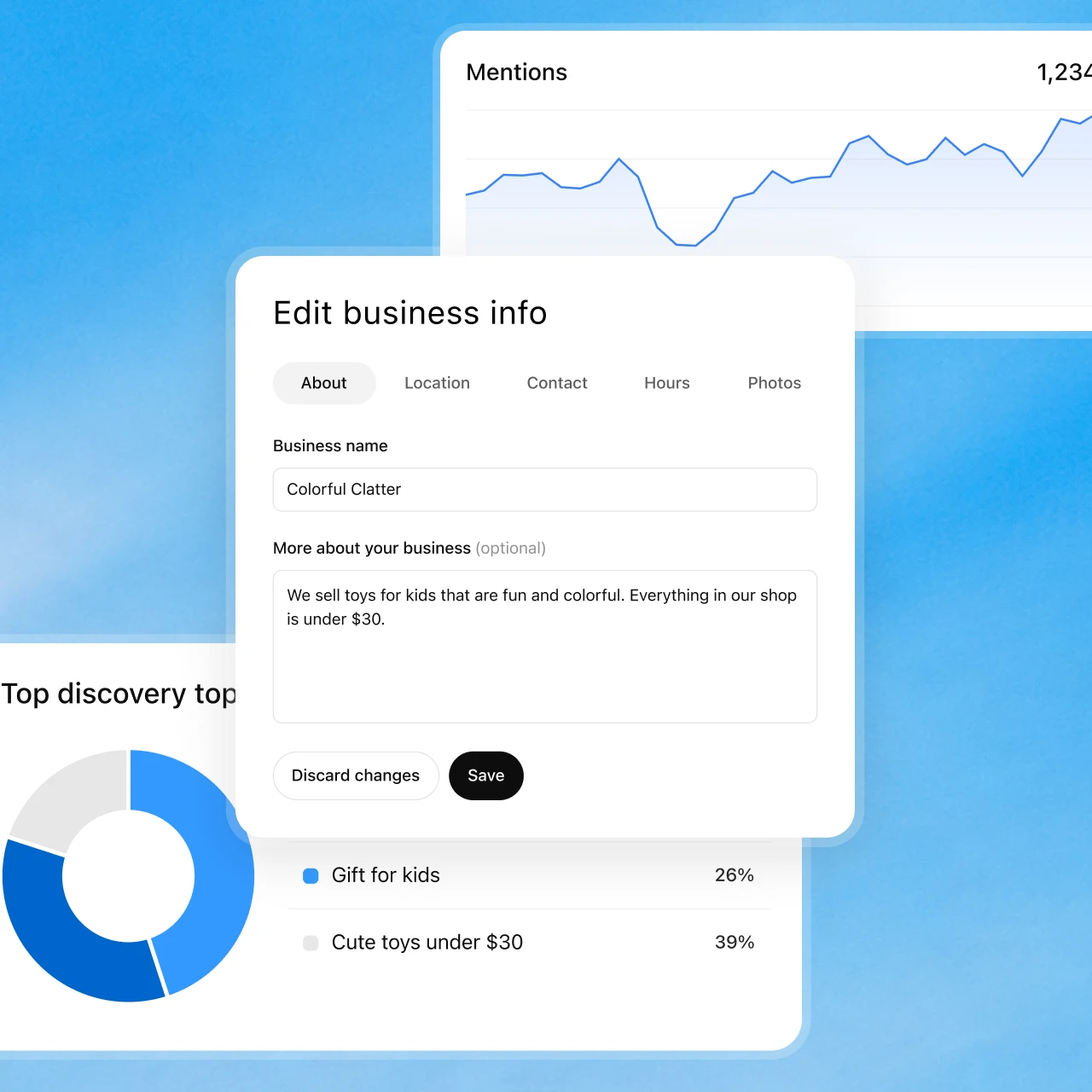
Official business-information review example. Supplying accurate facts is different from controlling ChatGPT’s independent recommendations. Source: OpenAI.
Step 3. Update product feeds and catalog data
Business Hub gives you three ways to send products. You can connect a Shopify store, upload a CSV that follows OpenAI's product feed specification, or link to a hosted feed file. Products must follow OpenAI's Commerce policies, and connecting a feed doesn't publish an agent or guarantee that ChatGPT recommends your products.
OpenAI also documents a direct feed path using SFTP. The file upload overview lays out the delivery rules:
- Push feeds to OpenAI over SFTP
- Prefer parquet, with jsonl.gz, csv.gz and tsv.gz also supported, all in UTF-8
- Send a full snapshot of the catalog, which OpenAI treats as the source of truth
- Keep the same file name and overwrite it on each update
- Refresh at least daily
- Start with a sample of around 100 items before the first full snapshot
The products spec requires nine fields on every row: item_id, title, description, url, brand, seller_name, image_url, availability and price. Price uses the format 79.99 USD. Availability must be one of in_stock, out_of_stock, pre_order, backorder or unknown, and an empty or unrecognized value rejects the row. Update the feed when a sale starts or ends, because dates in the feed don't schedule price changes.
OpenAI keeps its most recently processed record for up to 14 days. Set is_eligible_search=false to drop a product at the next processed snapshot, or omit it from every later snapshot and let the retained record expire within 14 days.
Feeds give ChatGPT structured data to surface products with accurate pricing, availability and seller context, and purchases still happen on your own website or app. Keep one distinction in mind. Feeds uploaded through Ads Manager are eligible only for ads during the beta and don't appear in organic ChatGPT conversations.
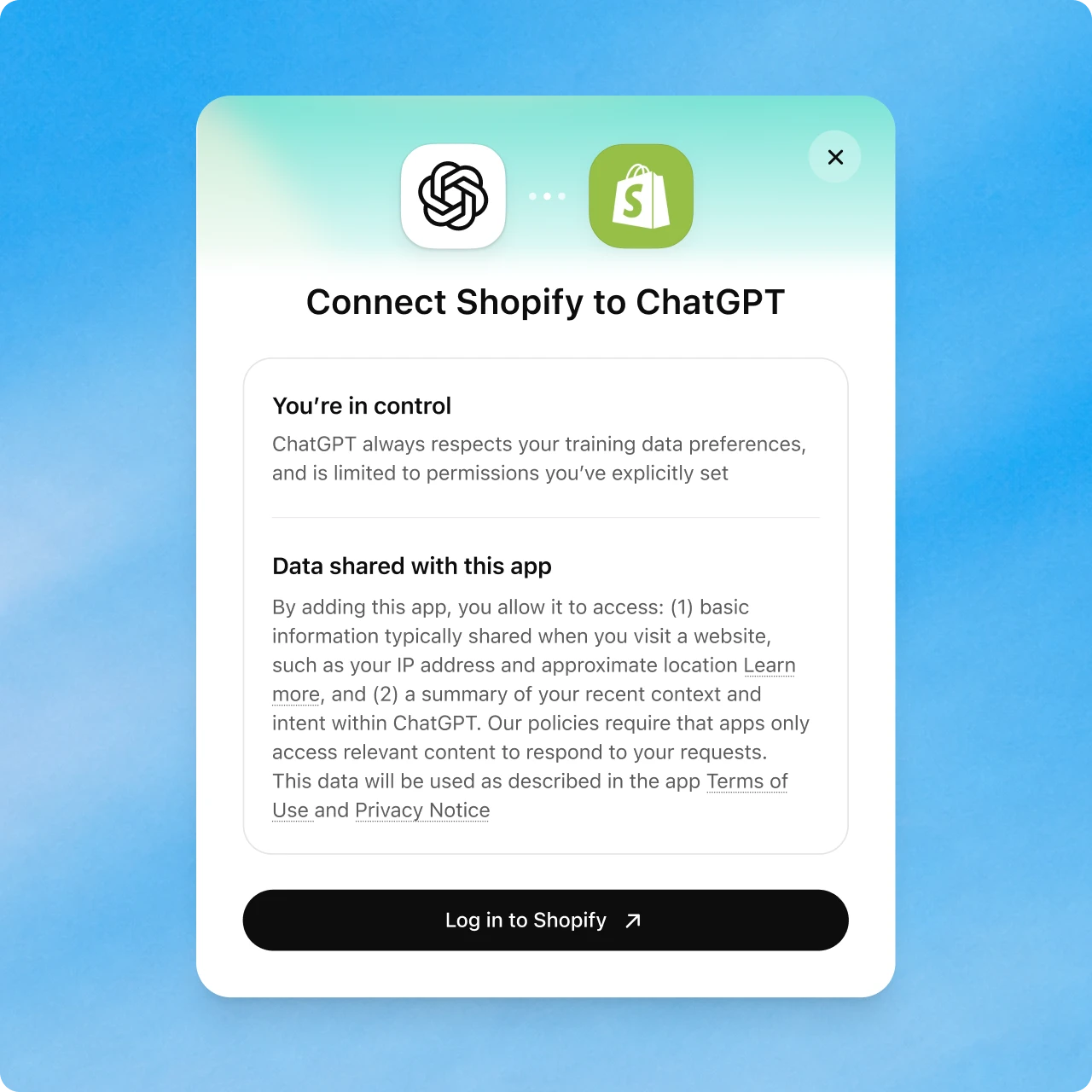
Official Shopify connection example. Eligibility and the permissions shown during setup still govern the actual account. Source: OpenAI.
Step 4. Refresh what your Business Agent knows
Your Business Agent answers from the business information you provide, such as product details and your return policy, plus the instructions you write under the Business Agents Policy. When facts change, we recommend reviewing the relevant profile fields and feed from steps 2 and 3, then rewriting instructions where the facts changed. Manage the agent from the Business tab.
Test before customers see anything. Preview the agent with a common customer question, and if the answer is wrong, fix the information or instructions and test again.
Publishing is a separate, optional step, and customers can chat only with a published agent. You can't create an agent while Persona verification is pending or after it fails.
Write instructions within the agent's current limits. The agent explains products and policies and links to your website. The agent can't complete purchases, make bookings or check a customer's order. Under the Business Agents Policy it must present itself as AI representing your business, never as a human, an independent adviser or an OpenAI endorsement.
OpenAI documents no file formats, size limits or file counts for Business Agent knowledge. The 512 MB per file and 10 GB per agent limits in OpenAI's help belong to internal workspace agents, a different product.
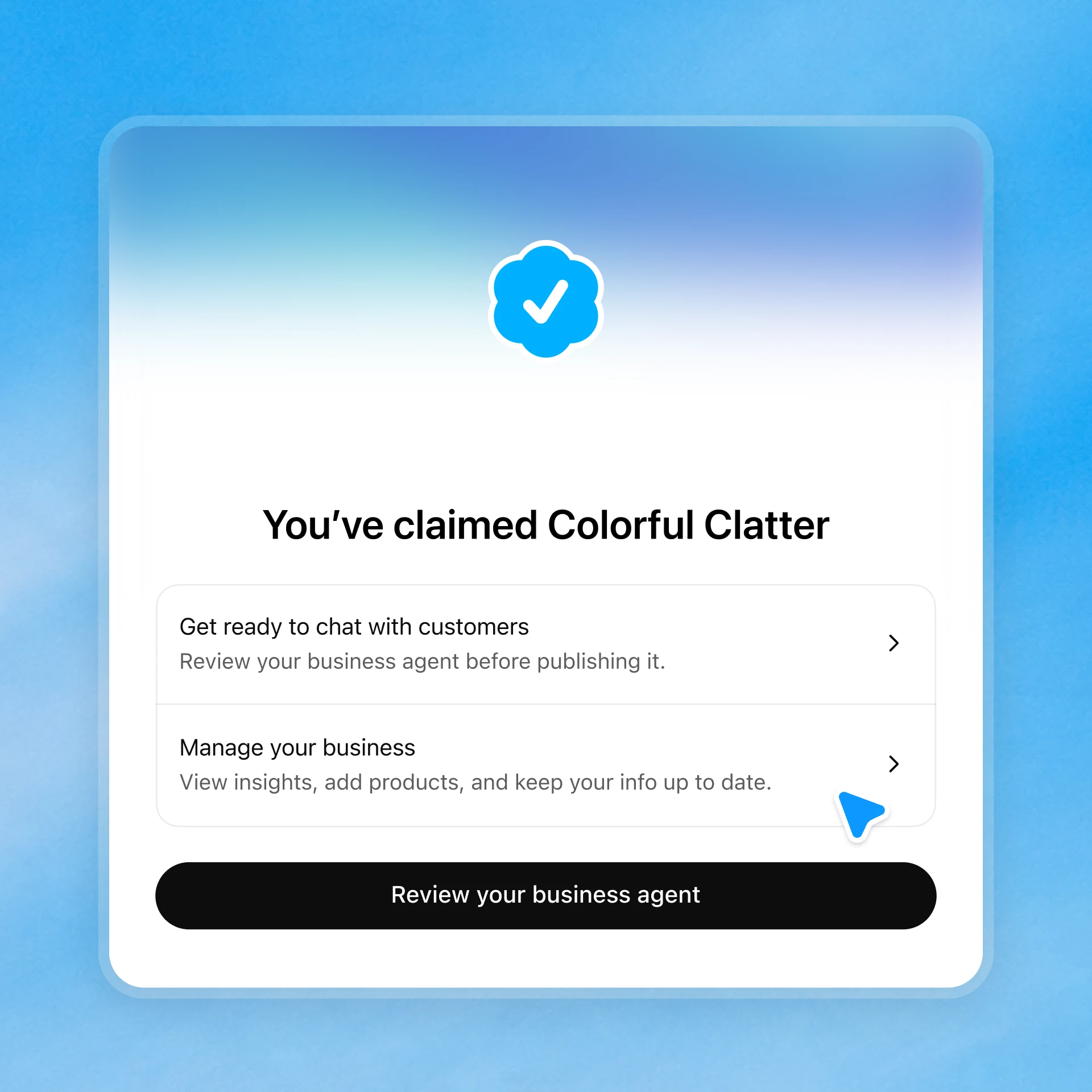
The confirmation offers separate actions to review the agent and manage the business. A claimed profile does not mean an agent is already published. Source: OpenAI.
Step 5. Submit changes and track review status
OpenAI reviews and publishes changes to business details, and it gives no fixed review window. The setup article says only that review time varies, that updates can take time to appear in a listing or an answer, and that you should wait for a review to finish before retrying.
For Persona checks, OpenAI emails its decision or a request for more information, and you can select Cancel submission while review is pending. If a check fails or expires, follow the email, and select Try again where it appears to submit corrected information.
The policy pages list the grounds for declining content:
- OpenAI may decline a request when a business's offerings or practices raise significant safety or integrity concerns.
- OpenAI may hold off on some categories until safeguards exist.
- OpenAI may remove submitted content or limit profile management for violations, and decline feed content at its discretion.
- The policy bars false or misleading claims and requires that you own the business or are authorized to represent it.
OpenAI documents no formal appeal for a declined profile change. For failed or expired Persona verification, correct the submission and retry where Try again is offered, or contact OpenAI Support with the details listed in step 1.
Step 6. Align your website and third-party listings
Your website has to agree with your profile, because ChatGPT search reads it separately. OpenAI's crawler documentation says OAI-SearchBot surfaces websites in ChatGPT search, and websites that block it won't appear in search answers, though they can still show up as navigational links. Allow OAI-SearchBot in robots.txt and allow requests from OpenAI's published IP ranges at your host or CDN.
The crawler settings are independent of each other:
- You can allow OAI-SearchBot and block GPTBot, which collects content that may be used to train OpenAI's models.
- ChatGPT-User fetches pages when a person asks a question and doesn't decide search eligibility.
- After a robots.txt change, allow about 24 hours for OpenAI's systems to adjust.
Then match the facts. Put the same hours, service area, return policy and delivery terms on your website that you entered in Business Hub, and retire old pages that state superseded terms. For an online business, Business Hub counts a mention only when ChatGPT references your website, so a clean, crawlable website is part of how your visibility gets measured.
OpenAI's documentation offers no schema.org or JSON-LD guidance for ChatGPT search. The structured route it does document is the product feed.
Third-party listings come next. OpenAI's web search help explains that ChatGPT search sometimes partners with other search providers and may share a user's location with providers of nearby business listings. Search Engine Land, citing Axios, reported that Yelp licenses its reviews, ratings, photos and business information to OpenAI, so claim and update any listings you control there.
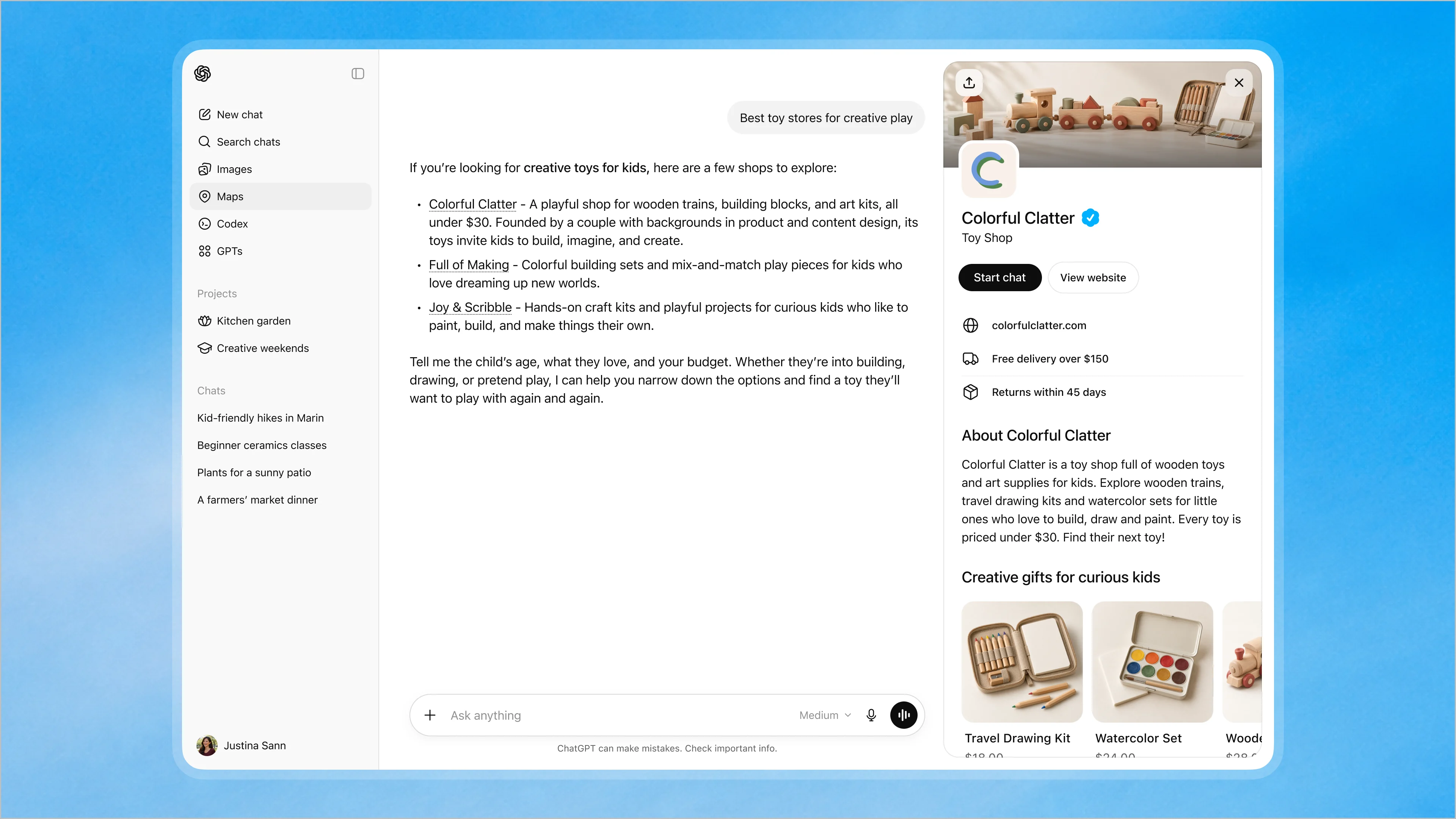
The business profile presents a route to the agent conversation alongside a route to the website. OpenAI’s product illustration. Source: OpenAI, November 10.
How business-supplied information relates to other sources
Your profile is one input among several, and you don't hold final say over any of it. The Businesses in ChatGPT Terms let OpenAI create and display a listing whether or not you claim it. Claiming doesn't give you exclusive control, since OpenAI may supplement, edit or replace your information using other sources, or decline to display what you submit.
The policy adds that profiles may include information from other sources and that OpenAI doesn't verify every detail or resolve every factual dispute. The setup article says claiming doesn't guarantee more visibility or give you direct control over ChatGPT's independent recommendations, and that advertising doesn't influence those answers.
Here is the split as OpenAI documents it.
You can correct:
- The profile fields you submit in Business Hub
- Your product feed and its prices and availability
- Your Business Agent's instructions and published state
- Your website, through crawler access and content
You can't directly change:
- ChatGPT's independent recommendations or placement
- Information OpenAI pulls from web results and third-party providers
- How OpenAI weighs your profile against those sources, since it publishes no precedence rule
We think that last point should shape how you work. With no published tiebreaker, our view is that the practical way to fix a wrong answer is to correct every source you own that states it, starting with the ones you can correct fastest.
Update company details in a ChatGPT Business workspace
Workspace settings control the workplace subscription, while Projects and Custom GPTs hold reusable business context. Neither updates your public profile.
To rename the workspace, go to Workspace settings, select the pencil icon next to the workspace name, edit it and save. The Business roles article warns that the change may take time to take effect. Owners change the separate Discoverable name under Workspace settings, then Identity & access, in User Provisioning.
Admin Console is a second entry point. A ChatGPT Business release note dated October 21, 2026 says owners and admins can select their Business workspace in Admin Console to manage members and available controls. Opening it there doesn't add Enterprise-only features or change who manages paid seats.
Company billing details are owner-only. Switch to the workspace, open your profile icon, then Workspace settings, Billing, Settings and Edit, update the billing information or Tax ID, and save. The change applies to future invoices only. Requests to reissue an existing invoice go through OpenAI Support, and a reissue isn't guaranteed.
Membership and billing move separately. Sending an invitation doesn't buy or reserve a seat.
Removing a member ends their access immediately but leaves the seat billable until an owner removes it under Workspace settings, Members, Users, Manage seats. A Business workspace needs at least two Standard or Premium seats.
Moving from a personal account involves two separate actions. Joining a Business workspace doesn't migrate anything. To bring personal content across, switch to the Business workspace, open Settings, then Data Controls, and select Merge next to "Merge data from your personal workspace." The migration article lists what to check before you start:
- Export anything you need first, because Business has no self-service export
- Note your personal usage credits, which don't transfer
- Expect an active personal subscription to be canceled and refunded for the unused portion, unless you bought it through the App Store or Google Play
- Know that the merge is permanent and moves everything supported, with no way to select individual chats or files
Conversations, Library files, your own Custom GPTs and Projects, supported automations and cross-chat memories transfer. After the merge, your personal workspace is deactivated but its data isn't deleted.
Choose between Project Instructions, Files and Custom GPTs
In our view, Projects are the best home for business context your team reuses. OpenAI's Projects help lists Business limits of 40 files per project, 10 uploads at a time and 100 collaborators.
Shared projects switch to project-only memory and don't see a member's personal custom instructions or memories, so everything the team needs has to live in the project itself.
Split the content by job. OpenAI's GPT guidance puts rules, tone and workflow in instructions and reference material in knowledge files, and we find the same split works for projects. A starting template for the instructions:
Audience: [who buys from us, by role and company type]
Offerings: [products or services, one line each, with the current pricing source]
Pain points: [the problems buyers bring to us, in their words]
Voice: [tone, words we use, words we avoid]
Source of truth: [which uploaded file holds hours, policies and prices]
Rules: [what to do when a question falls outside the files]
OpenAI documents no precedence rule for when Project Instructions and Project Files disagree. We recommend designing so they can't: state each fact once, in a file, and keep instructions free of facts that change. When hours or pricing change, replace the file. In a shared project, deleting a file removes it for everyone.
We'd put new business context in Projects rather than Custom GPTs. Custom GPTs still accept up to 20 knowledge files of up to 512 MB each, but OpenAI plans to retire custom GPTs across ChatGPT plans with a migration path to plugins.
Investigate stale or conflicting information
Check review and verification status, then the sources you can correct fastest, or saved settings and access for a team-only problem. Run this sequence when ChatGPT shows a wrong public detail:
- Open your Business Hub profile and confirm the published value, not a draft.
- Check the product feed for the affected item, including
availabilityandprice. - Check your website for any page that still states the old detail, and confirm OAI-SearchBot can reach it.
- Search third-party listings you control, such as review and local directories, for the same detail.
- Fix every source that disagrees, then resubmit the profile change and wait for review.
Changes stuck in review or rejected
Check whether Persona verification is still pending when a change stalls. Features that need Persona stay locked until approval, and submitting doesn't count. If OpenAI asks for more information by email, reply with it. If a check failed, use Try again with corrected details that match your official records.
For a rejected change, check the policy grounds in step 5. Remove any claim about prices, availability, qualifications or results that you can't back up, confirm you're authorized to represent the business, and resubmit. If you can't retry, contact OpenAI Support with the step you were on, the error and a redacted screenshot.
ChatGPT still shows old details
OpenAI states that a saved change doesn't mean every answer will reflect it immediately, and it gives no propagation time for profile edits.
The windows it does document are narrower. They include about 24 hours after a robots.txt change, a daily feed cadence, and up to 14 days before an omitted product's retained record expires.
If the profile is correct but answers are wrong, check other sources ChatGPT may use. Go back to steps 3 and 4 of the sequence. If a product is wrong, check whether the last feed upload failed. OpenAI lists missing required fields, outdated field names and malformed values as the common ingestion failures.
Answers also vary between runs of the same prompt. Record the date, engine and exact prompt each time you check, and judge a fix by the pattern across several runs rather than one response.
Team members do not see workspace updates
When teammates don't see a change, check the save before anything else. For workspace agents, a "Save conflict" message means someone else saved first.
Select Refresh agent to load their version, and copy your unsaved work first. A workspace name change may need time.
Access problems come next. OpenAI's SSO troubleshooting article notes that SSO can succeed even when a person has no invitation, membership or SCIM assignment in the workspace. Admins should confirm the exact email, the identity-provider assignment and the latest SCIM sync.
Domain verification adds its own delays. DNS changes can take up to 24 hours to appear, and a setup marked Expired means the 7-day window closed, so start it again.
Scope explains the rest. Roles and seats are separate, so a role change doesn't change what a seat can use. Members' private chats aren't visible to others by default, and shared projects use project-only memory. A teammate who should see a shared project's context needs to be a collaborator on it.
Protect business data while you update it
Business Hub and your workspace follow different data rules, so check which one you're putting data into. In Business Hub, OpenAI shares only aggregated insights.
OpenAI doesn't share users' conversations or Business Agent chats with businesses. The Business Agents Policy bars agents from using deceptive pretexts to collect personal information, including asking users to upload images or documents that reveal high-risk data.
ChatGPT Business workspace data is excluded from model training by default and encrypted in transit and at rest. Training on business data happens only if you explicitly opt in, for example through feedback mechanisms. Deleted conversations leave OpenAI's systems within 30 days unless OpenAI must keep them for legal reasons.
OpenAI's storage article says data residency for ChatGPT Business is rolling out gradually and isn't yet available to every customer. You choose a region at checkout, and it covers content at rest, not inference. If you pick a region outside the U.S., a copy of each prompt and response is also stored in the U.S. for a limited time for abuse monitoring, and abuse-monitoring logs stay in the U.S. regardless.
Keep regulated data out entirely. Self-serve ChatGPT Business includes no Business Associate Agreement or Zero Data Retention, and OpenAI's HIPAA guidance bars using its services with protected health information without a BAA. For support tickets, OpenAI asks for screenshots with sensitive information removed.
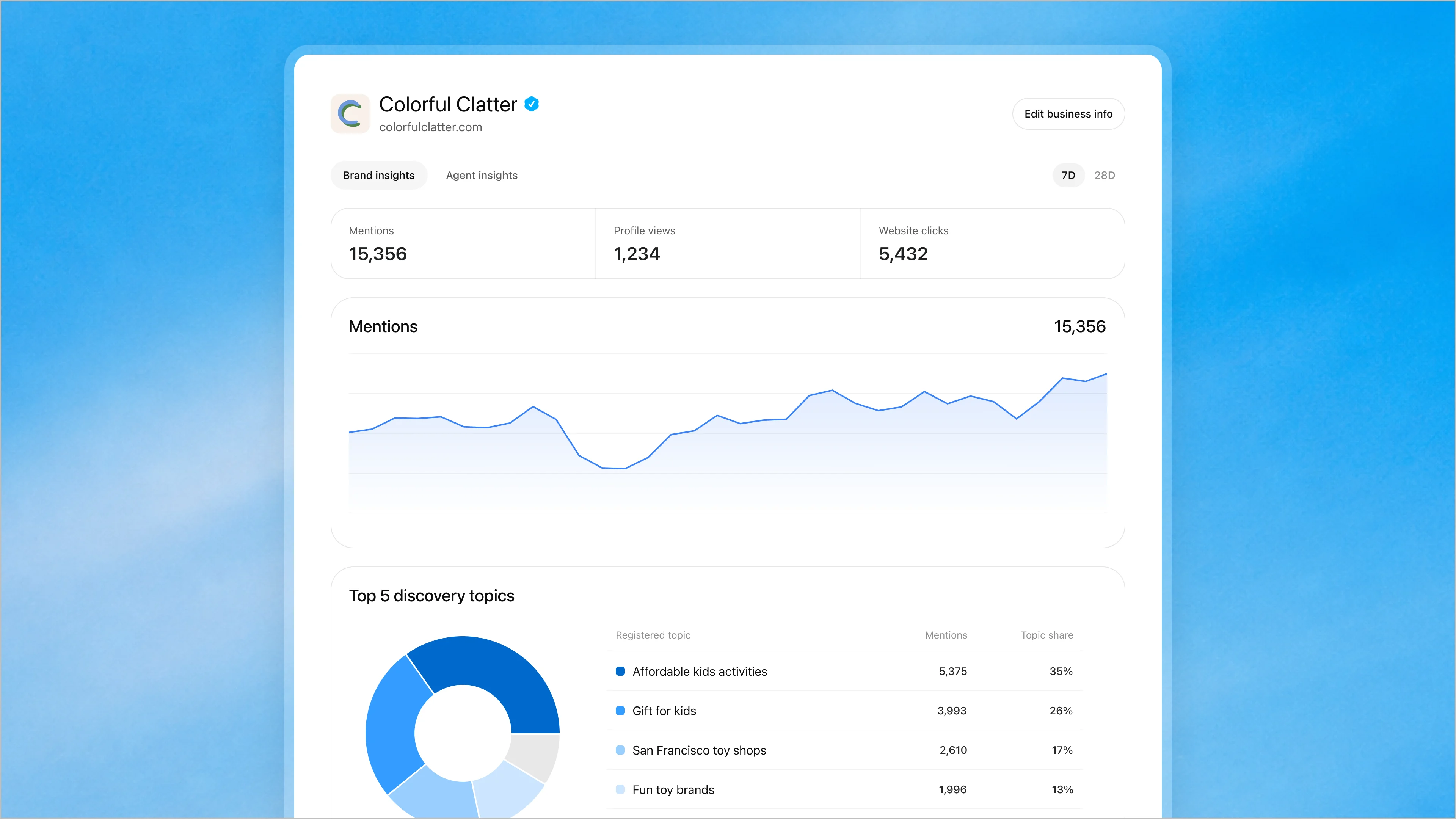
Source: OpenAI’s November 10 announcement. This is OpenAI’s product illustration, not GrowthX or customer performance data.
Monitor accuracy as part of ongoing AI visibility work
Accuracy drifts unless someone checks it on a schedule. We'd set three cadences. Review the profile and feed after any price, policy or hours change. Recheck a fixed set of prompts in ChatGPT monthly. Repeat the same prompts in other engines quarterly, since buyers don't ask only ChatGPT.
Business Hub's Insights give you ChatGPT's side of the picture. They show mentions, website clicks and discovery topics over the past 28 days, only once activity passes OpenAI's reporting thresholds. A blank metric doesn't necessarily mean zero activity. Discovery topics show common themes in answers that mentioned or cited you, not individual prompts.
Other engines need their own checks. Teams that want a standing record across ChatGPT, Claude, Perplexity and Google AI Overviews can track it with CheckThat, our AI visibility index.
If your team keeps rebuilding the brief across disconnected tools, explore the GrowthX platform: shared company context, portfolio priorities, and production in one place, with your team making the calls. Whatever you use, start with this week's open item. Pick the one detail you changed most recently, run it through the five-step diagnostic sequence, and log the date you confirmed every source agrees.