A verified business presence in ChatGPT gives you a claimed profile with a blue check, business details you can edit, and a 28-day view of how often ChatGPT mentions your business and sends clicks to your website. If your business is eligible and located where ChatGPT is available, you can claim your business in ChatGPT through Business Hub. The process has four parts: sign in, prove you control the business, pass an identity check, and wait for OpenAI's approval.
OpenAI introduced Businesses in ChatGPT in beta on November 10, 2026, and positioned it as a way to reach the 1.2 billion people who use ChatGPT each week. Treat the beta label as a planning constraint. OpenAI's own policy says eligibility requirements may change over time, so the rules below describe the product as documented on launch day.
Businesses in ChatGPT series: Overview · Claim and verify (this article) · Measure visibility · B2B and services · Update business information · Create a Business Agent · Search-console comparison and history
Claiming your business in ChatGPT at a glance
An owner or authorized representative of an eligible business claims its listing from the Business Hub sidebar inside ChatGPT. After OpenAI approves the claim and a Persona identity check, the owner can edit the profile and view insights. Some US businesses can also publish a Business Agent. OpenAI keeps live features, announced expansion and possible future uses separate, and your planning should too:
| Status | What OpenAI says | What to do with it |
|---|---|---|
| Live now | Eligible businesses where ChatGPT is available can claim a profile. Business Agents are open to eligible US ecommerce and online service businesses with a website. Local stores and restaurants can claim only an existing US listing. | Check your business type against the eligibility rules below, then start the claim. |
| Announced expansion | OpenAI plans to expand Businesses in ChatGPT and Business Agents to more markets and business categories, and to build tools for organizations with more complex needs. No dates, markets or categories are given. | Don't budget around a launch date. Prepare your website so you can claim quickly when your category opens. |
| Possible future uses | OpenAI says it will explore more ways for businesses to connect with customers, directly or through agents, in ChatGPT and beyond. | Treat this as direction, not a roadmap. Nothing here is committed. |
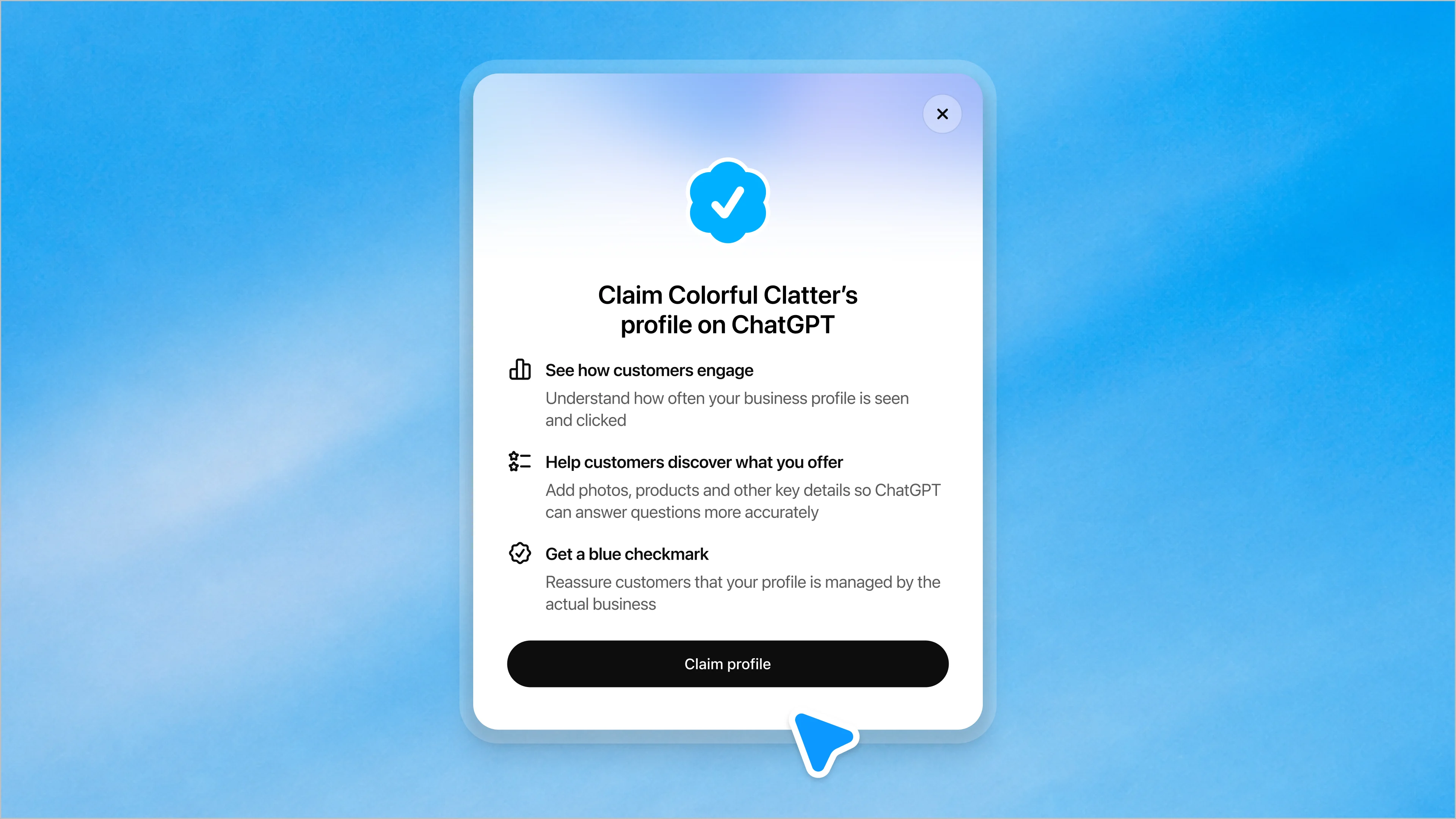
The claim screen connects information management, customer engagement and verified ownership. OpenAI’s launch illustration; not an account tested for this guide. Source: OpenAI, November 10.
Separate the business listing from ChatGPT Business and ad credits
These products serve different purposes. The ChatGPT Business subscription is a paid workplace plan, and its ad credits are an advertising benefit for eligible workspace owners. OpenAI's setup docs say claiming, publishing an agent and advertising are separate steps. The table shows what each product is, who needs it and what it costs:
| Product | What it is | Who needs it | Cost |
|---|---|---|---|
| Businesses in ChatGPT | OpenAI's beta offering of interfaces, tools and services for businesses, including Business Hub | Any eligible business that wants to manage how it appears in ChatGPT | No fee published by OpenAI |
| Business Hub | The area in the ChatGPT sidebar where you claim, edit and view insights for a business | The owner or an authorized representative | No fee published by OpenAI |
| Business Agent | An optional, clearly labeled AI agent that answers customer questions using information the business provides | Eligible US ecommerce and online service businesses with a website, after Persona approval | No fee published by OpenAI |
| ChatGPT Business subscription | A self-serve workplace plan with a shared workspace and seat-based access (renamed from ChatGPT Team on August 29, 2025) | Teams buying ChatGPT for employees. OpenAI's claiming docs name no required plan tier | Standard seats are $25 per user monthly, or $20 per user monthly billed annually |
| ChatGPT ad credits | A monthly ad credit for owners of eligible paid ChatGPT Business workspaces | Advertisers with a Business workspace billed in the US, UK, Germany or France | Up to $50 per month in credits, through January 31, 2027, while supplies last |
Check eligibility and prerequisites before you start
A claim goes through only when your business type and location qualify, the person claiming can prove control of a business channel, and that person passes an identity check tying them to the business.
Supported business types and regions
OpenAI's Businesses in ChatGPT policy says not every business can create or claim a profile. OpenAI's business page adds that eligibility depends on industry, location and OpenAI's verification and integrity checks, and that claiming is initially available to businesses with a website. Here is how the rules apply to the common cases:
- Local stores and restaurants: These businesses can currently claim only an existing US listing. They can't add a new one.
- Online businesses: If you run an eligible online business and can't find your listing, you may see an option to add it.
- B2B companies: OpenAI sets no B2B-specific rule in either direction. A B2B software company or consultancy with a website falls under the general rules, and US online service businesses are named as eligible for Business Agents.
- Service-area and home-based businesses: The docs neither include nor exclude them by name. The policy does require your address or service area to be accurate and current, so describe how you serve customers truthfully.
- Regulated categories: OpenAI may decline a request when a business's offerings or practices raise significant safety or integrity concerns. OpenAI may also hold off on whole categories until it has safeguards in place. The terms require that your products are lawfully offered and backed by the necessary licenses.
- Multi-location brands and franchises: Each distinct brand is managed separately, and central management across a parent company's brands and locations isn't available. Claiming the main brand does not claim its locations.
For regions, OpenAI limits claiming to places where ChatGPT is available and the required verification is supported. The general ChatGPT Supported Countries list is the closest published reference. OpenAI publishes no separate country list for Business Hub, and Business Agents are limited to the United States.
Proof of authority you need
The claim step accepts four kinds of proof. Each one shows control of a channel tied to the listing:
- Business phone, verified with an SMS or automated call code
- Business email, verified with a code sent to the address associated with the business
- Website domain, verified by adding a DNS TXT record
- Shopify store, verified by connecting the store
The phone, email, DNS and Shopify methods establish control of a business channel. Identity documents belong to the separate Persona check. Persona verification may ask for a government-issued ID, business registration information, and proof that you're authorized to represent the business. Because Persona asks for these identity and authorization details, the business name, address and any registration or tax number you submit should match your official business records.
Account and plan requirements
You need a ChatGPT account. OpenAI's setup docs say you don't need an Ads account or a ChatGPT Enterprise agreement to claim an eligible business. OpenAI names no required plan tier and publishes no claiming fee.
Choose the claiming account deliberately. The admin who claims the business can add teammates and grant an agency access, and each person uses their own ChatGPT account. If you claim inside a ChatGPT workspace, invitees may need to be members of that workspace. We'd claim from an account the company controls rather than from one person's personal login, so access doesn't leave when that person does.
How to claim and verify your business in ChatGPT step by step
OpenAI first approves your claim, then your Persona identity check. The steps below follow OpenAI's setup help article through both approvals, with the blue check, profile editing, insights and agent creation all waiting on the second approval.
Step 1. Sign in and open Business Hub
Sign in to ChatGPT and open Business Hub from the sidebar. OpenAI's launch video also points to chatgpt.com/business-hub as the entry point. If you received a claim invitation by email, open the personal link and sign in with the email address that received it. Don't forward that link to anyone else.
Existing OpenAI Enterprise customers and advertisers have a second path. They can work with their OpenAI representative to claim the business.
Step 2. Find or add your business
Search for your business by name, select the listing that matches, and confirm which ChatGPT account will manage it. OpenAI may already display a listing for your business whether or not anyone has claimed it, so search before you try to add one.
Several situations change what you see at this step:
- Not found: Eligible online businesses may see an option to add the business. Local stores and restaurants can't add new listings.
- Already claimed: Use Dispute ownership from the profile's ••• menu. The fix section below covers this case.
- Multiple locations: Claiming the main brand doesn't claim its locations, so claim locations separately where location claims are open. Brands on a managed claim process have location profiles locked by default and should ask their OpenAI account contact for the supported path.
- Duplicates: OpenAI's policy forbids creating a fake or duplicate profile, and only unpublished drafts can be deleted. Pick the existing listing rather than creating a second one.
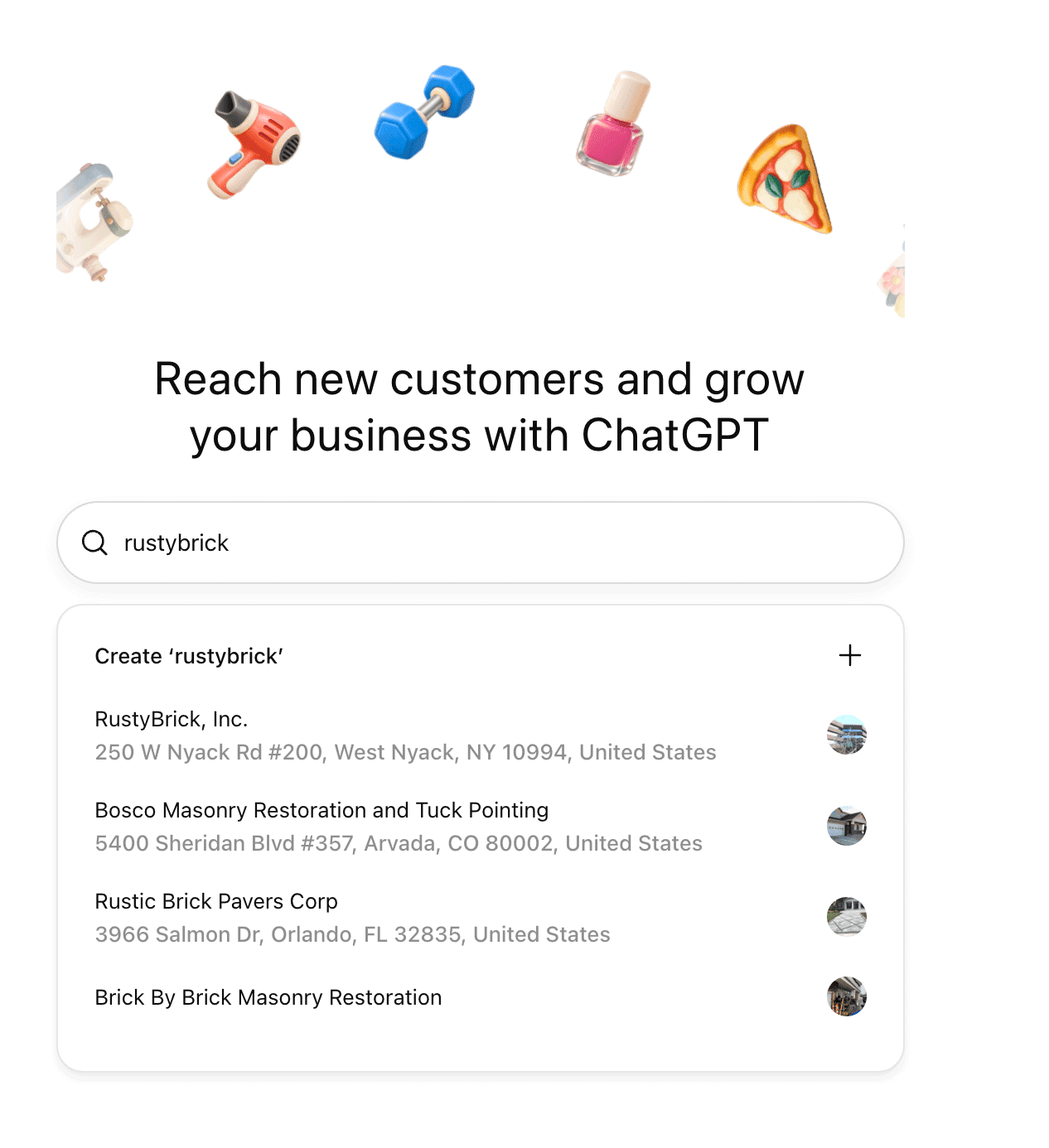
Finding the correct business listing is distinct from proving that you may manage it. Screenshot published by Barry Schwartz. Source: Search Engine Roundtable, November 10.
Step 3. Submit proof of authority
Choose one of the verification methods ChatGPT shows for your business and follow the prompts. The methods have different failure points:
- Business phone: Select Business phone, choose text message or automated call, select Get code, and enter it. The code goes to the number shown on the listing.
- Business email: Select Business email, then Get code, and enter the code sent to the address associated with your business.
- Website domain: Add the TXT record ChatGPT shows to your DNS, copying type, name or host, and value exactly. Then select Verify domain. DNS changes take time to appear.
- Shopify store: Select Connect Shopify, review the permissions, and log in to the store for the business you're claiming.
If someone else manages your domain, send them the exact record rather than retyping it yourself.
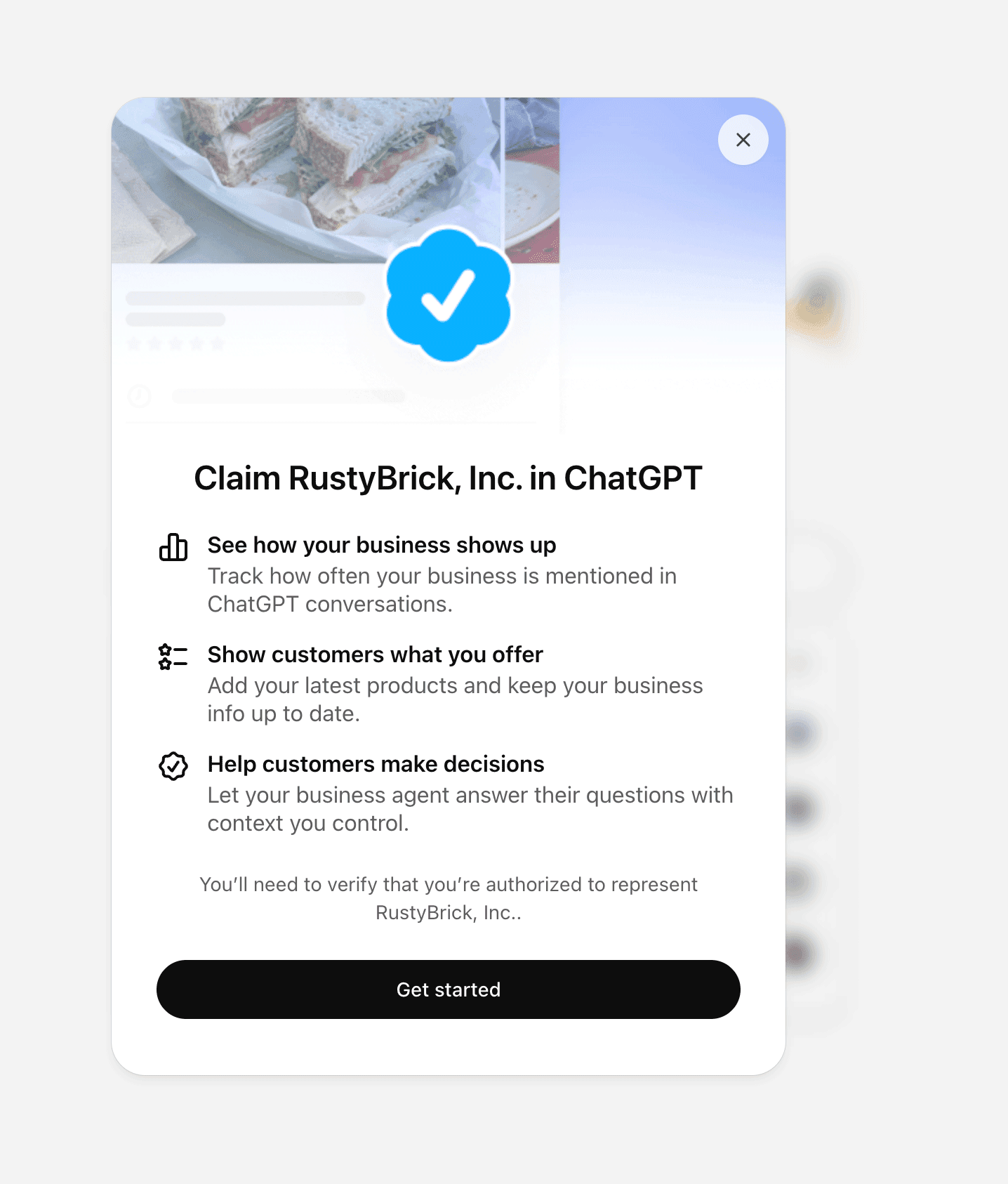
The claim screen asks the person to verify that they are authorized to represent the business. Screenshot published by Barry Schwartz. Source: Search Engine Roundtable, November 10.
Step 4. Wait for review and approval
OpenAI reviews the claim and emails a decision or a request for more information. You can select Cancel claim while it's under review. OpenAI's help article gives no numeric timeline and says only that review time varies. Wait for the decision before trying again.
After approval, complete Persona verification. Select Verify with Persona, then Continue to Persona. If you claimed with another method first, open the Business tab, select your profile, find Complete verification with Persona, and select Verify. You can select Cancel submission while Persona review is pending. Submitting to Persona isn't the same as approval, and gated features stay locked until OpenAI approves.
One status label signals a different problem. If you see Contact support instead of a claim option, the listing is locked. Select Contact support to request access.
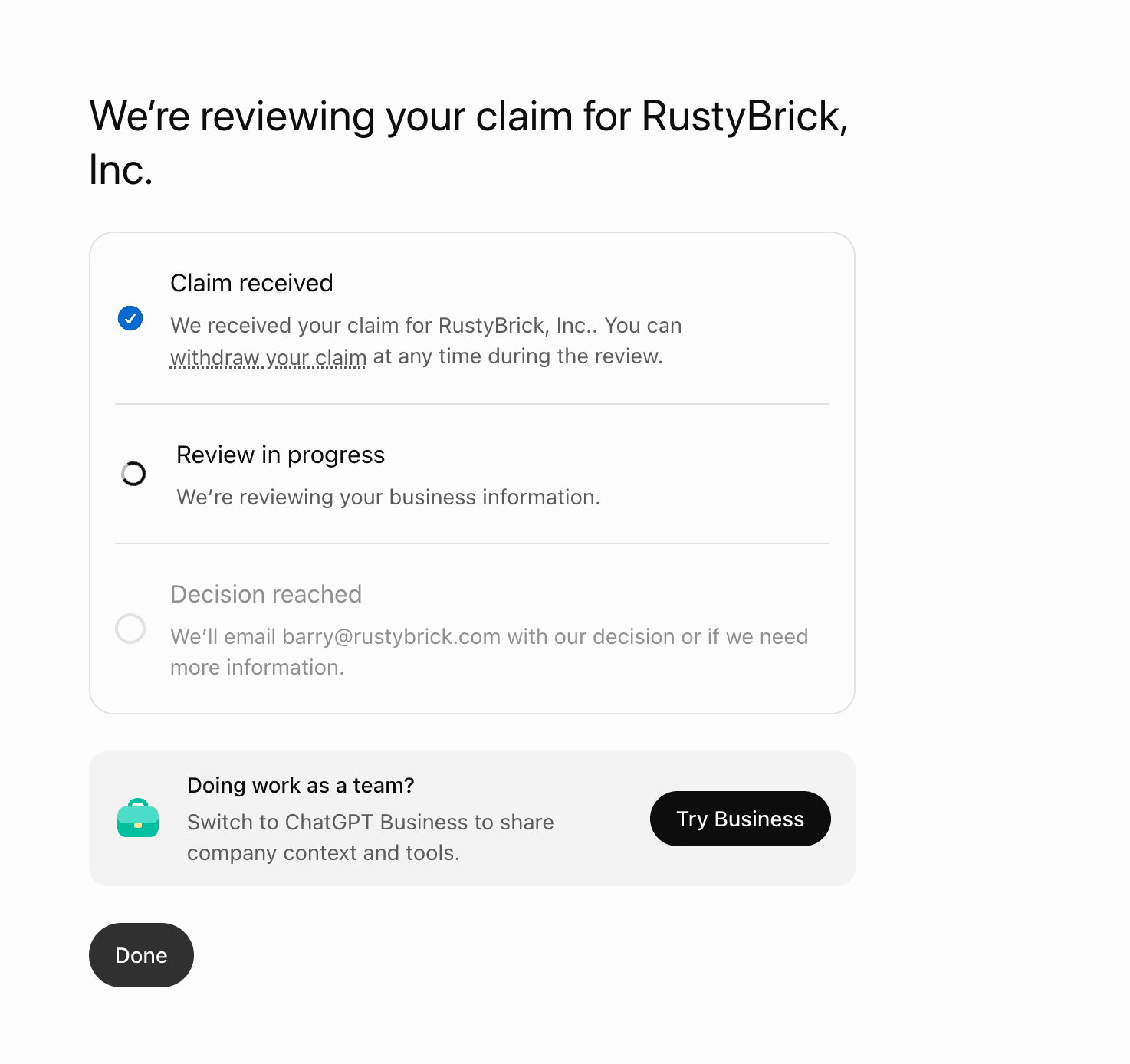
Submitting a claim is not an approval. This launch-day screenshot shows the review still in progress. Screenshot published by Barry Schwartz. Source: Search Engine Roundtable, November 10.
Step 5. Complete your business profile
Once both approvals land, open your profile and update the fields OpenAI exposes:
- Website
- Business description
- Product or service category
- Logo and cover photo
- Delivery policy
- Return policy
You can also connect a product feed, including a Shopify feed, to share prices and availability. Connecting a feed doesn't publish an agent and doesn't guarantee that ChatGPT recommends your products.
OpenAI reviews and publishes your changes, and they take time to show up in listings and answers. ChatGPT may also draw on other sources when answering questions about your business. Make the profile match your website word for word on the facts that matter, such as category, return policy and service area. A conflict between the two hands ChatGPT two versions of the truth.
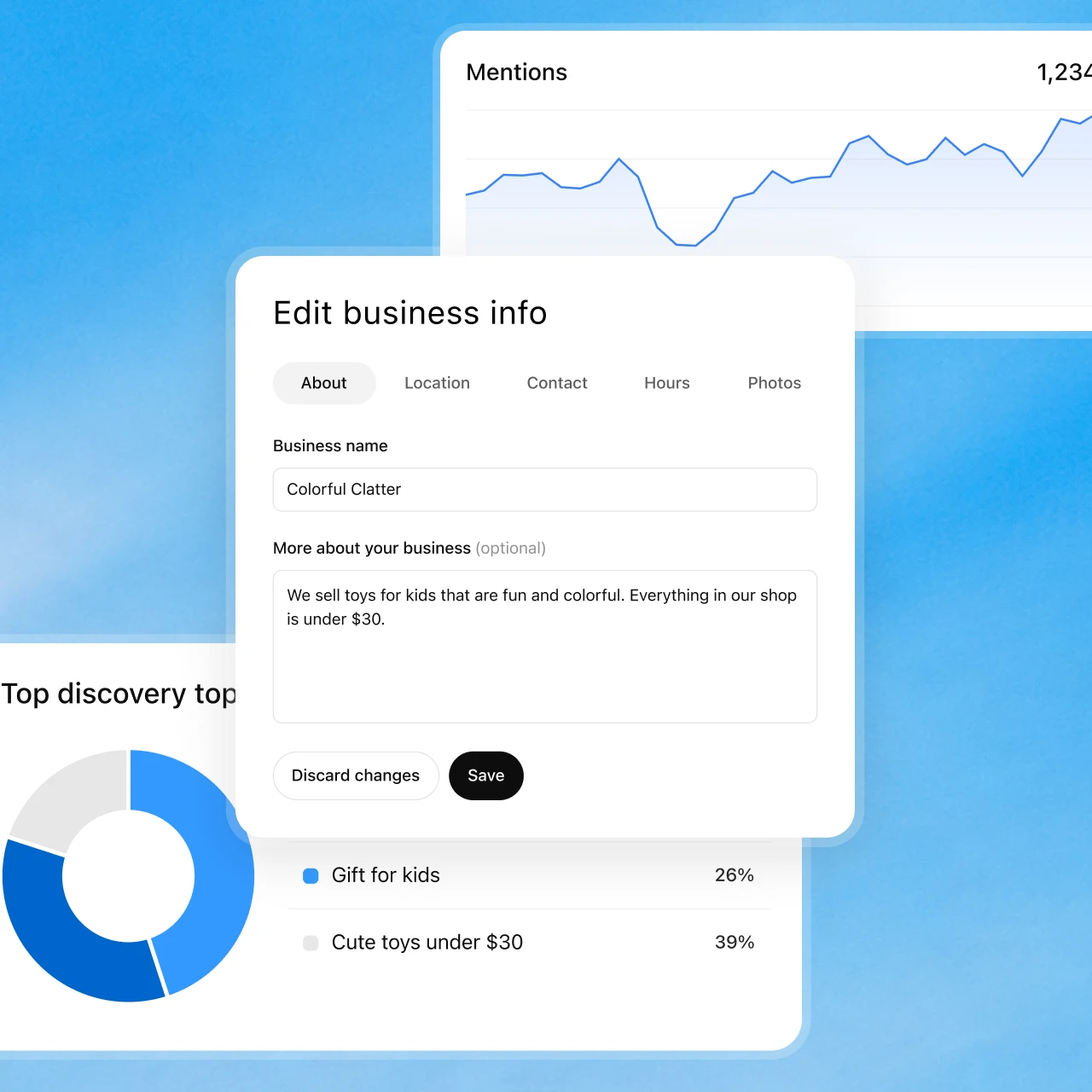
Official business-information review example. Supplying accurate facts is different from controlling ChatGPT’s independent recommendations. Source: OpenAI.
Step 6. Set up Business Agent if available
A Business Agent answers customer questions about your products and policies using information you provide. Customers choose to chat with it in a conversation that is labeled and separate from ChatGPT's independent answers. Publishing one is optional, and some businesses can manage a profile without qualifying for an agent. Our Business Agent setup guide walks through preparation, preview and publication.
A business can create an agent only if it is a US ecommerce or online service business with a website, meets the industry requirements in OpenAI's Business Agents Policy, and holds an approved Persona verification, which makes eligibility narrower than claiming. You can't create an agent while verification is pending or after it fails. The policy also says business verification alone doesn't guarantee agent eligibility.
The setup has three moves:
- Review the information the agent will use, such as product details and your return policy, and write instructions that follow the Business Agents Policy. The agent must say it is AI representing the business.
- Preview the agent with a question customers ask often, such as whether a sale item can be returned. If the answer is wrong, fix the information or instructions and test again.
- Select Publish.
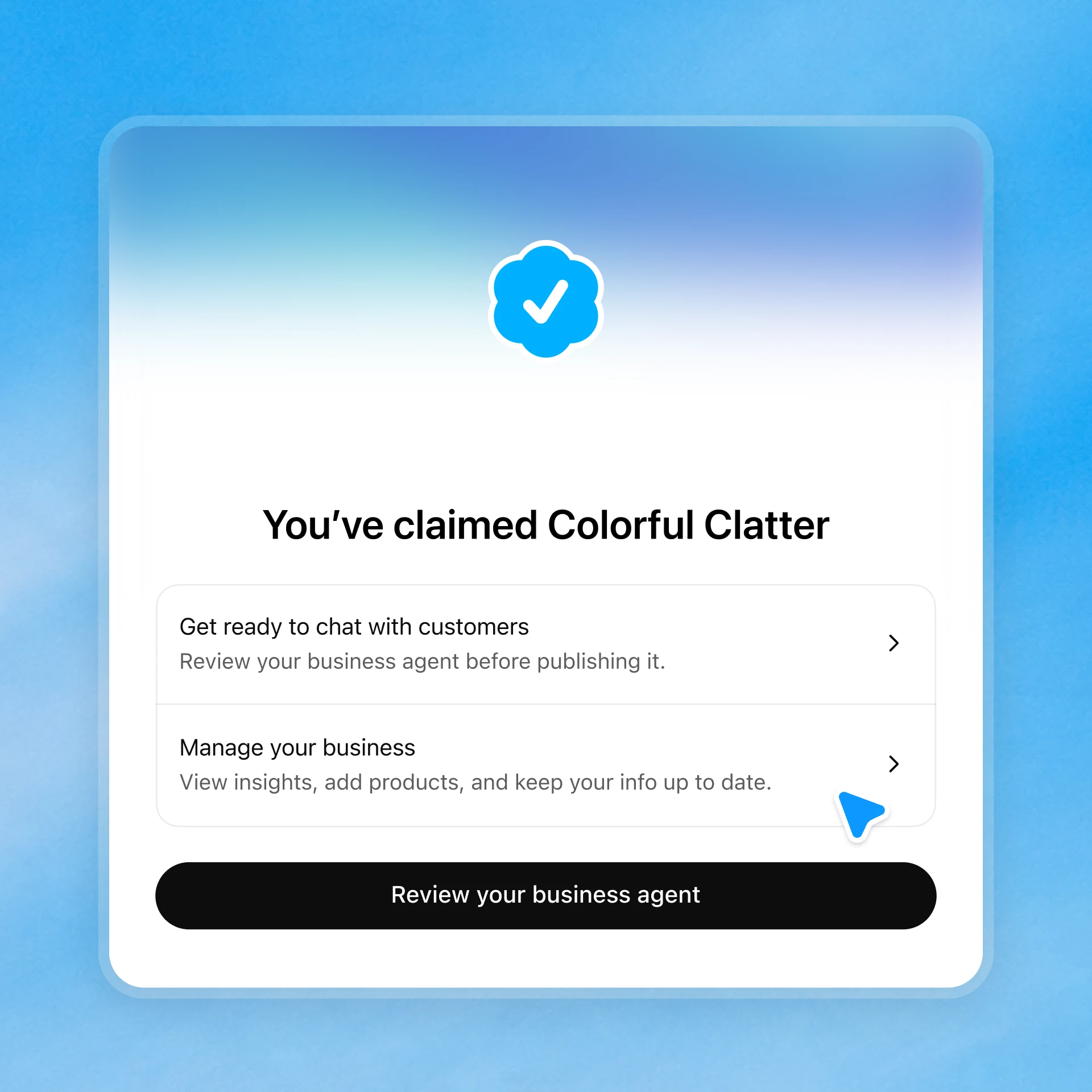
The confirmation offers separate actions to review the agent and manage the business. A claimed profile does not mean an agent is already published. Source: OpenAI.
What a verified claim gives you
A verified claim gives you aggregate insights for the past 28 days, editable profile fields, and the blue check. You get no window into individual conversations. Business Hub reports these metrics:
- Mentions for online businesses: A mention counts when ChatGPT references your website. Your brand name alone doesn't count.
- Mentions for local businesses: A mention counts when ChatGPT shows a result for that location, even if the customer never opens the listing or visits your website.
- Website clicks: This counts how often people click through to your website.
- Discovery topics: These are common themes in answers that mentioned or cited your business. They are aggregate categories, not prompts or a direct report of intent.
- Profile views: OpenAI's launch dashboard lists profile views alongside the other metrics, without a published definition.
OpenAI's documentation describes mentions, website clicks and discovery topics; its launch illustration also shows profile views. Impressions, clicks and CTR belong to Ads Manager reporting, which is a separate product. Insights appear only once activity crosses OpenAI's thresholds, and OpenAI doesn't publish those values. A blank metric can mean you're below the threshold or that data is still being collected, so don't read it as zero.
The limits on the data shape what you can learn from it. Businesses don't receive individual prompts, consumer conversations or Business Agent chats. Nothing in OpenAI's documentation describes a competitor ranking or benchmark view.
And the claim doesn't buy placement. OpenAI says claiming doesn't guarantee more visibility or give you direct control over ChatGPT's independent recommendations, and advertising doesn't influence those answers either. AJ Ghergich made the same point on X on launch day, warning that your website still has to earn its way into answers.
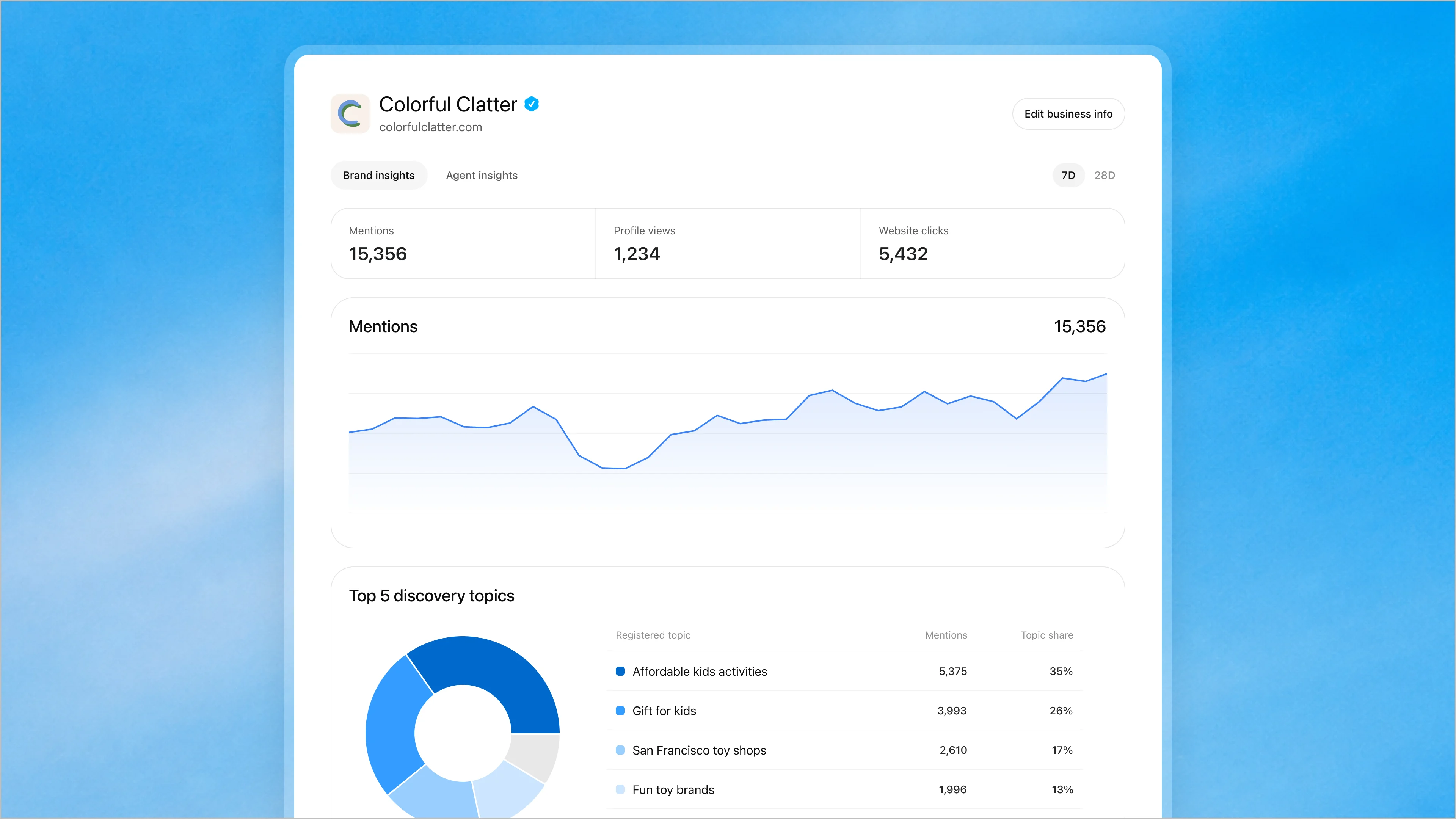
Source: OpenAI’s November 10 announcement. This is OpenAI’s product illustration, not GrowthX or customer performance data.
How ChatGPT claiming compares to Google Business Profile
The eligibility rules differ sharply. Google's Business Profile rules exclude online-only businesses and offer the profile at no charge, while ChatGPT lets eligible online businesses add a listing. Here's how the three compare:
| Dimension | ChatGPT Business Hub | Google Business Profile | Google Search Console |
|---|---|---|---|
| What you claim | A business profile in ChatGPT | A listing on Google Search and Maps | A website property |
| Who qualifies | Eligible businesses where ChatGPT is available. Local stores and restaurants claim only existing US listings | Businesses with face-to-face customer contact, including storefront, service-area and hybrid. Online-only businesses aren't eligible | Not covered here |
| Verification | Phone, email, DNS TXT record or Shopify, then a Persona identity check | Phone or SMS, email, live video call, postcard or business video, plus bulk verification for chains | Not covered here |
| Review time | Varies, with no numeric timeline published | Up to 5 business days for most reviews | Not covered here |
| Cost | No fee published by OpenAI | No charge | Not covered here |
| Analytics | Mentions, website clicks, discovery topics, profile views over 28 days | Views, searches, directions, calls, website clicks, messages, bookings | Impressions, clicks, average position, CTR by query, page, country and device |
Google can verify a Business Profile instantly when you've verified the website in Search Console. OpenAI's setup guidance describes connecting a Shopify store as a way to speed up verification. It does not describe a Search Console-style instant-verification shortcut.
Costs, plans and ChatGPT ads
OpenAI publishes no claiming fee and names no required plan tier for claiming, and its setup docs say claiming doesn't need an Ads account or an Enterprise agreement. A ChatGPT Business subscription and ChatGPT ads are separate purchases with their own prices, and OpenAI's setup docs describe claiming and advertising as separate steps.
The ad credit links the two products that do cost money. A ChatGPT Business workspace owner opens Benefits in workspace settings, selects Claim ad credits, picks or creates an ad account, and selects Link & claim.
- The monthly credit matches your paid seat fees after discounts, capped at $50. A workspace paying $200 in seat fees for a full month earns the full $50.
- Each credit expires 30 days after it's issued.
- Each workspace links one ad account, and taxes and usage charges don't count toward the credit.
Ads themselves run through Ads Manager at ads.openai.com, with postpay billing that requires billing setup before campaigns deliver. OpenAI's campaign docs set a minimum daily budget by billing currency, including USD 25, EUR 15 and GBP 15. Businesses can sponsor their Business Agent and use it as an ad destination, and sponsored placements are labeled and kept apart from ChatGPT's answers.
Fix common verification problems
Most claim problems trace back to a mismatch between what you submit and what the listing or your official records already say. The fixes follow from OpenAI's help docs:
- Rejected or expired Persona check: Follow the instructions in the email. If Try again is available, resubmit with a business name, address and registration or tax number that match your official records.
- Approved but still showing incomplete: Contact OpenAI Support. Include the step you were on, any error message, and a screenshot with sensitive information removed.
- Business not found: Eligible online businesses may see an option to add a listing. Local stores and restaurants can claim only an existing US listing, so double-check spelling and former business names in search.
- Listing claimed by someone else: Open the profile, select ••• and then Dispute ownership, and verify with Persona that you're authorized. Disputing doesn't change the profile's visibility.
- Locked listing: Select Contact support from the profile.
- Duplicate listing: OpenAI publishes no merge process, and Support can't delete, unpublish or hide a published profile. You can delete only your own unpublished drafts, from Overview and the ••• menu, by selecting Delete draft.
- Unsupported region: Claiming requires that ChatGPT is available where your business is located and that OpenAI supports the required verification there. Using ChatGPT from an unsupported country can get an account blocked, so don't route around it.
- Wrong details in your profile: Edit the fields after verification and allow time for review.
Correcting what ChatGPT says about you is harder than correcting your profile. OpenAI's Businesses in ChatGPT terms say claiming doesn't give you exclusive control, and OpenAI may supplement, edit or replace listing information from other sources. Fix the profile first, then fix the third-party sources that disagree with it. For a single wrong answer, use the thumbs-down button under the response. OpenAI's content reporting form covers policy or legal violations, not ordinary factual errors.
Prepare your website if you cannot claim yet
If your business type or region isn't eligible, your website and third-party listings still decide how ChatGPT describes you. Start with crawler access.
OpenAI's crawler documentation says websites that block OAI-SearchBot won't be shown in ChatGPT search answers, apart from navigational links. OpenAI recommends allowing OAI-SearchBot and OpenAI's published IP ranges.
OpenAI controls search inclusion and model training with separate crawlers, so you can allow one and block the other. This robots.txt allows search and opts out of training:
User-agent: OAI-SearchBot
Allow: /

User-agent: GPTBot
Disallow: /
GPTBot crawls content that may inform the training of future OpenAI models. ChatGPT-User fetches pages when a user asks ChatGPT something, and robots.txt rules may not apply to it because the action is user-initiated.
OpenAI says search changes take about 24 hours to take effect after a robots.txt update. Check that your CDN isn't blocking OpenAI's IP ranges, since a firewall rule can undo an Allow line.
Your website then needs to state the facts a model would otherwise guess.
- Publish Organization schema that matches your legal name, logo, website and contact details.
- Keep your name, address and phone number identical across your website, Google Business Profile, Bing Places and directories.
- A service-area business should describe the area it covers the same way everywhere.
OpenAI's help center says ChatGPT may share location with trusted third-party providers for local information such as nearby business listings. Its restaurant search may show reservation availability from OpenTable, Resy or Yelp. Axios reported in July 2026 that Yelp licenses reviews, photos and business information to OpenAI.
Your website now serves three readers at once: buyers, AI engines and training bots. Write the explanations a buyer needs in language explicit enough that a crawler can extract the same facts without inference.
Track your ChatGPT visibility after claiming
Business Hub tells you how often ChatGPT mentioned you. It doesn't tell you which prompts you lost or who won them.
For that view you need prompt testing, either by hand or through a tool. Our Businesses in ChatGPT overview covers the wider program.
Manual testing costs nothing but time:
- Write a fixed set of buyer prompts by category and use case.
- Run each one in fresh sessions several times.
- Log whether your brand is named, whether your URL is cited, and which competitors appear.
- Answers vary between runs of the same prompt. Report each result as a share of runs that mentioned you, not as a single position, and keep the prompt set unchanged from month to month so the trend means something.
Third-party tools automate the same loop and differ mainly in how they collect answers. Most use prompt sampling.
Profound says it runs prompts through consumer AI interfaces rather than an API, and Ahrefs Brand Radar says it runs prompts through the free, publicly available web interfaces of ChatGPT and other platforms.
Panel-based tools take a different approach: Evertune describes a consumer panel of real conversations, and Similarweb says its prompt data comes from actual chatbot searches. Entry pricing is modest at the low end.
Peec AI's pricing page lists Starter at $95/mo for 50 prompts across 3 models with daily tracking, while enterprise tiers across vendors are custom-priced.
The other AI assistants run their own business programs. Google surfaces Merchant Center free listings in Gemini and lets Business Profile owners manage their profile through the Gemini web app.
Perplexity's Merchant Program is free for merchants and gives them a dashboard of shopping trends. Microsoft's Bing Places is free, and Copilot Checkout requires a Microsoft Merchant Center account and a product feed.
GrowthX AI visibility tracking, powered by CheckThat, covers ChatGPT, Claude, Perplexity and Google AI Overviews on the segments your team chooses, and we set those segments up for you. CheckThat also publishes a public AI visibility index. If your team keeps rebuilding the brief across disconnected tools, explore the GrowthX platform: shared company context, portfolio priorities, and production in one place, with your team making the calls.