7.1 · Connect Webflow
When to connect your Webflow CMS to GrowthOS, how to generate the right API token, and the setup wizard from connection to first published draft.
GrowthOS can publish finished articles straight into your Webflow CMS: pick a collection, click publish, and the article lands in Webflow as a draft with formatting intact and images hosted on Webflow's own CDN. The connection is a one-time setup of about five minutes. This guide covers when you need it, what to gather before you start, the setup wizard step by step, and what publishing looks like once it's live.
When to connect
Connect Webflow as soon as your workspace is producing articles that end up on your Webflow site. The signals that it's overdue:
- Someone is copy-pasting. Articles are finished in GrowthOS, then manually recreated in Webflow's editor: headings rebuilt, images re-uploaded, meta fields retyped. Every article costs 15 to 30 minutes of pure transcription, and every transcription is a chance to drift from the reviewed version.
- Formatting keeps breaking in the move. Tables collapse, lists lose their structure, or embedded images point at the wrong host. The publishing pipeline ships article HTML built to survive Webflow, so this whole class of problem disappears.
- Publishing volume is ramping. Moving from a couple of articles a month to a weekly cadence makes the copy-paste tax immediate. Connect before the ramp, not after.
If your site is not on Webflow, the same flow exists for Sanity, WordPress, Strapi, Storyblok, and Contentful; only the token step differs. And with no connection at all, GrowthOS still supports manual publishing (mark the article published and paste the live URL), so nothing blocks while you wait on access.
What you'll need
- Admin access to your Webflow site, enough to generate an API token in the site settings. You don't need to be the site's owner: any Admin on a full seat works, as long as their access covers this site (workspaces using site-specific access can scope a person away from a site; the test is whether you can open that site's settings at all).
- A GrowthOS login that can manage publishing. If you don't see CMS Connections under Workspace Admin, ask your GrowthX team to enable it.
- Five minutes with both tabs open.
How to connect
Generate a site API token in Webflow
In Webflow, open your site's settings (from the dashboard, hover the site card and click the settings gear; or in the Designer, open the top-left menu → Site settings) and go to Apps & Integrations → API access:

Click Generate API token, name it (something like "GrowthOS"), and set these scopes:
- CMS: read and write
- Sites: read
- Assets: read and write
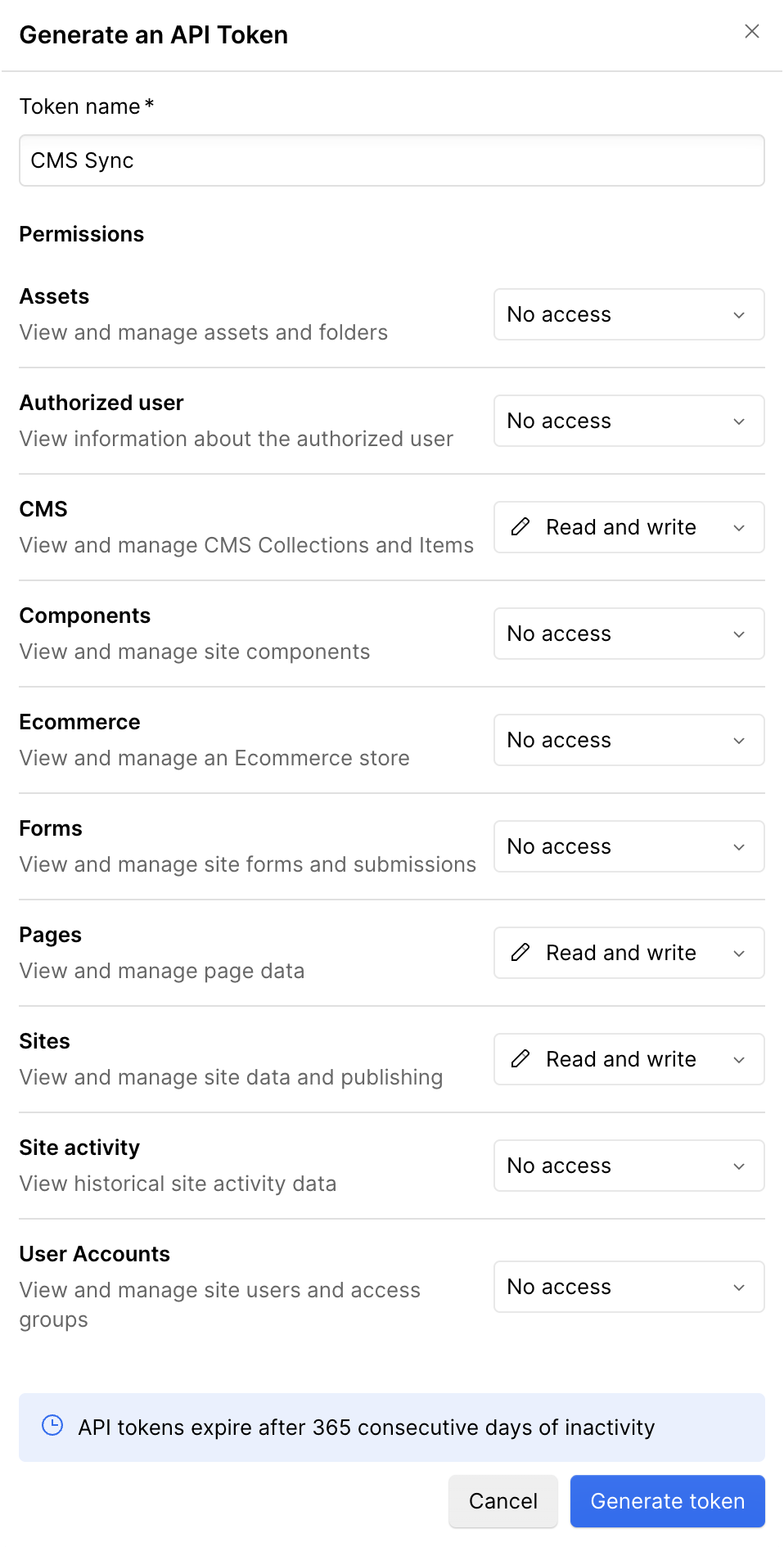
The Assets scope is easy to skip and shouldn't be: it's what lets GrowthOS upload article images as native Webflow assets. Without it, articles still publish but inline images arrive unlinked.
Generate the token from the site's settings, not the workspace. Workspace settings has a near-identical Apps & Integrations panel, but it issues workspace tokens, and GrowthOS needs a token scoped to exactly one site; a workspace token is rejected at the connect step. You're on the right screen when the settings header shows your site's name.
Connect the CMS in GrowthOS
In GrowthOS, go to Workspace Admin → CMS Connections and click Connect a CMS. Pick Webflow from the cards and paste the token. Leave the live-publishing switch off for now; it's the right default, and you can flip it later from this same screen once you trust the pipeline (see how publishing works).
Submitting lands you on the connection's settings screen, and GrowthOS immediately reads your site's collections. Within a few moments the header fills in with how many collections it found. If your site's structure changes later, Re-read refreshes the picture without disturbing anything already set up.
Add the blog collection
Click Add a collection and pick the collection your articles live in (usually Blog Posts). The dialog lists every collection on your site and warns you if the one you picked has no rich-text field, which usually means it's the wrong one. Confirming opens that collection's setup wizard.
Review and confirm the field mapping
GrowthOS proposes a mapping from its article fields (title, slug, body, meta title, meta description, cover image) to the collection's fields, with a reason for each suggestion. Review it in the confirm form: required Webflow fields are listed first and marked, each field has a source picker, and anything GrowthOS shouldn't touch can be left unmapped or given a fixed value. The form blocks you if a required field is uncovered or the article body has no home, so you can't confirm a broken mapping.
Run the test article
The wizard stages a sample article in the collection as a draft, then shows you exactly what Webflow received, field by field, with a link to open the real item. This is your proof the mapping works before any real content moves. Check that the body kept its structure (headings, lists, links) and that every mapped field carries the right value.
Finish
The last step recaps the collection, the mapping, and the test round trip. Finishing marks the collection ready and deletes the sample draft from Webflow, so nothing is left behind. You can add more collections to the same connection later (a resources section, a glossary); each gets its own mapping and its own wizard pass.
How publishing works after setup
Every article in GrowthOS now has a working Publish step. Pick the collection, publish, and watch the card update as the article lands.
- Draft first, always. Publishing saves the article as a draft in Webflow. Nothing appears on your live site until someone promotes it, and promoting from GrowthOS only works when the connection's live-publishing switch is on (it starts off). Until then, going live happens in Webflow on your terms.
- Updates flow through the same button. Edit the article in GrowthOS and publish again; the existing Webflow item is updated in place. Republishing an unchanged article does nothing rather than creating a duplicate.
- Images are Webflow-native. Inline images and the cover image upload to Webflow's asset library and serve from Webflow's CDN. The published page never loads assets from GrowthOS.
- Formatting survives. Article HTML is built to hold up in Webflow, including through an edit-and-save round trip in Webflow's own editor.
Known limitations
Draft edits belong in GrowthOS, not Webflow's Designer. The Designer rewrites rich text on save and can damage tables, lists, and some links in staged drafts. Draft links from GrowthOS open Webflow's read-only preview for exactly this reason; if a change is needed, make it in GrowthOS and publish again.
- Tables and code blocks are embeds. Webflow's editor has no native table or code element, so GrowthOS ships them as embedded blocks. They render perfectly on the published page, but Webflow's editor can't modify them; edit those sections in GrowthOS and republish.
- The live URL follows Webflow's slug. If someone changes the item's slug in Webflow, the published URL GrowthOS reports follows what's actually live.
Troubleshooting
- The connect step rejects the token. Almost always a workspace token instead of a site token (the rejection message says how many sites the token can see). Regenerate from the site's own settings.
- You can't find API access in the site settings. Your Webflow role on that specific site isn't Admin, or your seat is a limited one. Ask a workspace admin to raise your role on the site, or have any site Admin generate the token; who creates it doesn't matter to GrowthOS.
- Articles publish but images are missing or unlinked. The token lacks the Assets read-and-write scope. Regenerate the token with all three scopes and replace the credentials on the connection's settings screen.
- A publish is refused because the collection changed. Someone edited the collection's fields in Webflow, and GrowthOS pauses that collection rather than publish into a structure it no longer recognizes. Open the collection in CMS Connections and re-run the mapping against the refreshed schema; other collections on the connection keep publishing throughout. Step by step: Fix a paused collection.