7.6 · Connect Contentful
When to connect your Contentful space to GrowthOS, the dedicated user and personal access token to set up, and the setup wizard from connection to first published draft.
GrowthOS can publish finished articles straight into your Contentful space: pick a content type, click publish, and the article lands as a draft entry with the body converted to Contentful rich text and images uploaded as Contentful assets. Every publish writes only the fields you mapped, in your space's default locale, so your editors' other fields and every translation survive. The connection is a one-time setup of about ten minutes, most of it creating the token. This guide covers when you need it, what to gather before you start, the setup wizard step by step, and what publishing looks like once it's live.
When to connect
Connect Contentful as soon as your workspace (everything GrowthOS knows and does for your brand) is producing articles that end up on your Contentful-powered site. The signals that it's overdue:
- Someone is copy-pasting. Articles are finished in GrowthOS, then manually recreated in Contentful's entry editor: headings rebuilt, images uploaded to the media library, meta fields retyped. Every article costs 15 to 30 minutes of pure transcription, and every transcription is a chance to drift from the reviewed version.
- The SEO entry gets forgotten. If your content model keeps the meta title and description on a separate linked entry, a draft published without one goes live with no search metadata. GrowthOS can create that entry with every article.
- Publishing volume is ramping. Moving from a couple of articles a month to a weekly cadence makes the copy-paste tax immediate. Connect before the ramp, not after.
If your site is not on Contentful, the same flow exists for Webflow, WordPress, Sanity, Strapi, and Storyblok; only the credentials step differs. And with no connection at all, GrowthOS still supports manual publishing (mark the article published and paste the live URL), so nothing blocks while you wait on access.
What you'll need
- A Contentful organization admin, to invite a dedicated GrowthOS user to the space.
- A mailbox for that user that someone on your team reads. Contentful sends the invitation and the token expiry warnings there.
- Your Space ID, under Settings → General settings in Contentful, and your environment's ID if you don't publish into
master. - A GrowthOS login that can manage publishing. If you don't see CMS Connections under Workspace Admin, or there's no Contentful card there, ask your GrowthX team to enable it.
- Ten minutes, with both tabs open, plus however long it takes to accept the invitation.
How to connect
Invite a dedicated user to the space
A Contentful personal access token has no permissions of its own: it can do everything its user can do, in every space that user reaches. A dedicated user who belongs to this one space keeps the token's reach to exactly that space, and keeps it working when people on your team come and go.
An organization admin does this step. In Contentful, open the organization's Users page (from the space: the gear icon at the top right → Users → the organization settings link) and click Invite users:
- User email(s): the dedicated mailbox, for example
growthos@example.com. - Choose an organization role: Member, which can only access spaces and teams it's added to.
- Add to spaces: pick your space, then in Select a space role choose Editor.
Click Send invitations, then accept the invitation from that mailbox and finish signing up. The user now shows on the space's Users list.
Editor can create, edit, and publish entries and assets, which covers drafts and live publishing. If your plan also offers an Author role, it's enough for drafts only: an Author can't publish, so live publishing from GrowthOS would be refused.
Create a personal access token
Sign in to Contentful as the dedicated user. In the space, click the gear icon at the top right, choose CMA tokens, and click Create personal access token:
- Token name: something like "GrowthOS publishing".
- Expiration date: 30, 60, or 90 days, or Custom... for a longer period. Pick the longest your security policy allows. If your organization sets an expiration limit, stay within it: a token that expires later than the limit can't be authorized in the next step.
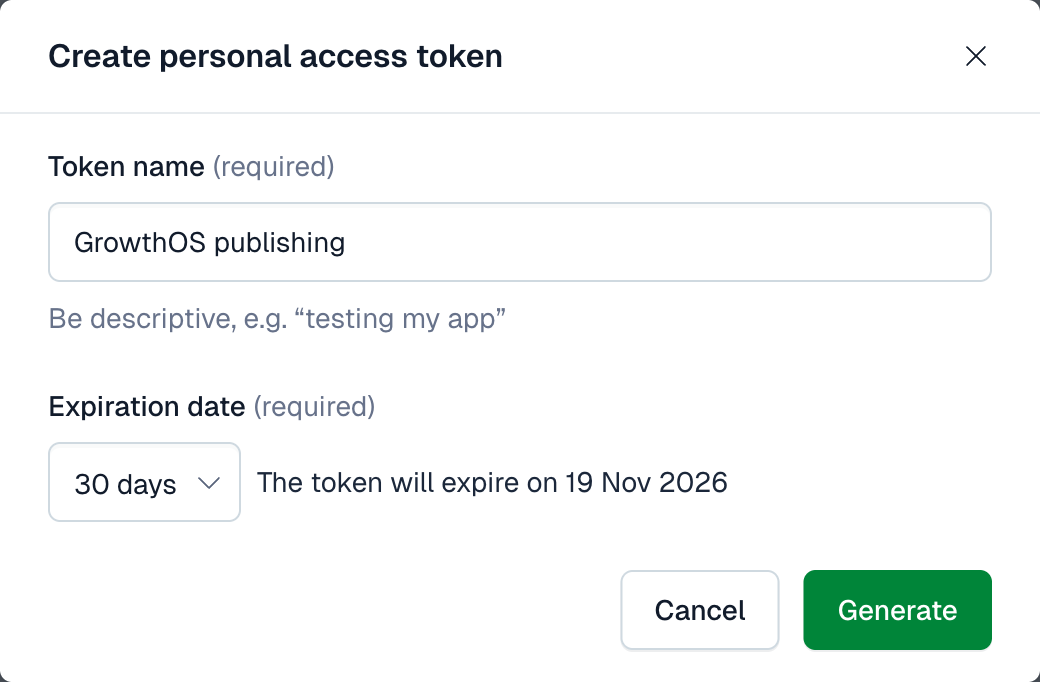
Click Generate and copy the token. Contentful shows it only once. When it nears its expiration date, Contentful emails the dedicated mailbox; when it expires, publishing stops until you paste a new token on the connection's settings screen in GrowthOS.
Use a personal access token from CMA tokens, not a key from the space's API keys page. API keys are for reading content, so GrowthOS can't write a draft with one and rejects it at the connect step.
Authorize the token for your organization
Contentful organizations can require every token to be authorized before it can reach their spaces. When that's on, an unauthorized token is refused on every request, and the connect step in GrowthOS fails. Authorizing takes one click, and the token's own user does it, not an admin.
On the same CMA tokens page, find the token's row and click Authorize access. The Token authorization panel lists every organization the dedicated user belongs to. Click Authorize next to the organization that owns your space. The button turns into Deauthorize, which means the token is authorized there.
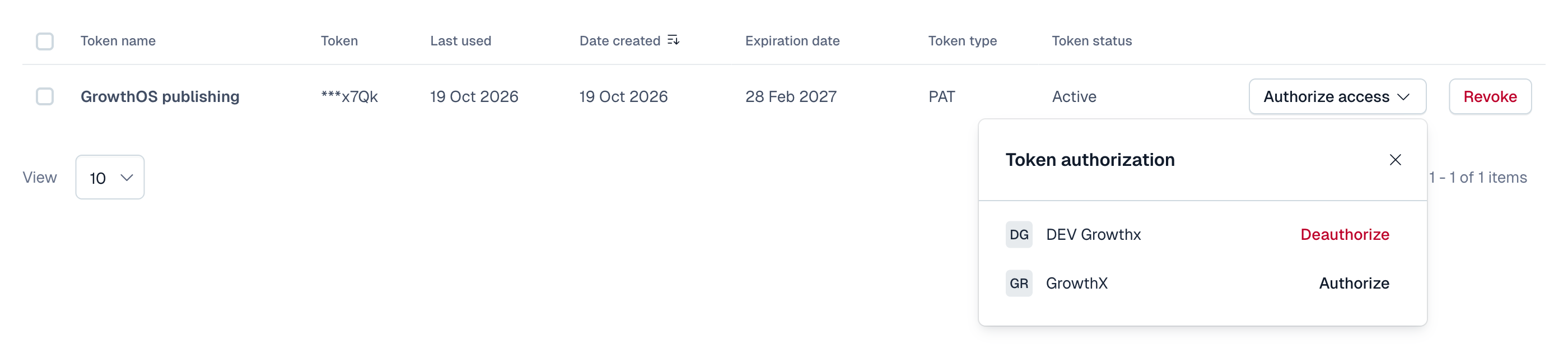
An organization admin can check whether the organization requires this under the organization's Tokens page → Settings → Require user authorization. The same dialog shows the organization's token expiration limit.
Connect the CMS in GrowthOS
In GrowthOS, go to Workspace Admin → CMS Connections and click Connect a CMS. Pick Contentful from the cards and fill in the form:
- Personal access token: the token from step 2.
- Space ID: the ID under Settings → General settings in Contentful.
- Environment (optional): the environment ID to publish into, from Settings → Environments. Leave it blank for
master. If you publish through an alias, enter the alias exactly as Contentful shows it. - Region (optional):
euif your space uses Contentful's EU data residency, otherwise leave it blank. You can tell from the address bar: EU spaces open onapp.eu.contentful.com. - Public site URL (optional): your website's address, for example
https://www.example.com. Contentful never knows your page URLs, so a published article's link is this URL plus its slug. You can add it later, but live publishing won't run without it.
Leave the live-publishing switch off for now; it's the right default, and you can flip it later from this same screen once you trust the pipeline (see how publishing works).
Submitting lands you on the connection's settings screen, and GrowthOS immediately reads your environment's content types. Within a few moments the header fills in with how many it found. If your content model changes later, Re-read refreshes the picture without disturbing anything already set up.
Add the blog content type
Click Add a content type and pick the one your articles use (something like blogPost or article). The dialog lists your environment's active content types and warns you if the one you picked has no rich-text field, which usually means it's the wrong one. Confirming opens that content type's setup wizard.
If one space feeds more than one site, the content type's page has its own Public base URL under Content type settings, which overrides the connection's Public site URL for that content type.
Review and confirm the field mapping
Click Propose mapping, and an agent (an automated worker inside GrowthOS) proposes a mapping from GrowthOS's article fields (title, slug, body, meta title, meta description, cover image) to the content type's fields, with a confidence and a reason for each suggestion. Review it in the confirm form: required fields are listed first and marked, each field has a source picker, and anything GrowthOS shouldn't touch can be left unmapped or given a fixed value. The form blocks you if a required field is uncovered or the article body has no home, so you can't confirm a broken mapping. When it's right, click Confirm mapping.
Fields that reference other entries, like an author or a category, get a picker of those entries for their fixed value. Author can stay mapped with a default: the default is preselected on each article's Publish step, and you can change it per article.
If your content type links a separate entry for SEO, like an SEO Metadata entry with the meta title and description, its row offers Create a new SEO Metadata with each article. Click it and the row opens into that entry's own fields (Title, Description, Image, and so on), each with its own source picker. GrowthOS then creates one of those entries with every article, fills it, and links it; if an article already links one, GrowthOS fills that one instead. Link an existing entry instead closes it again. The agent can suggest this but never turns it on for you, because a wrong choice here would create a new entry with every article.
Contentful checks required fields when an entry is published, not when a draft is saved. A required field the article doesn't fill needs a fixed value here, or publishing it will be refused.
Run the test article
Click Send a test article. Within a few seconds the wizard creates a sample article as a draft entry, plus its SEO entry if you set one up, then shows you exactly what Contentful received, field by field, with a link to open the real entry. This is your proof the mapping works before any real content moves. Check that the body kept its structure (headings, lists, links) and that every mapped field carries the right value. Reference fields show as Contentful entry IDs rather than names; that's expected.
Finish
The last step recaps the content type, the mapping, and the test round trip. Click Finish setup: the content type's page opens, marked ready. Finishing deletes the sample entry, and its SEO entry, from your space, so nothing is left behind. You can add more content types to the same connection later; each gets its own mapping and its own wizard pass.
How publishing works after setup
Every article in GrowthOS now has a working Publish step. Pick the content type, publish, and watch the card update as the article lands.
- Draft first, always. A new article is created as a draft entry. On an entry that's already live, the update shows as changed in Contentful, and the live page keeps its published version until someone publishes again. Promoting from GrowthOS only works when the connection's live-publishing switch is on (it starts off); until then, going live happens in Contentful on your terms.
- Only your mapped fields change. A publish writes the mapped fields and fixed values in the default locale, and nothing else. Fields outside the mapping, every other locale, and tags stay as your editors left them. An editor's change to a mapped field reverts on the next publish from GrowthOS. Republishing an unchanged article writes nothing, so it never marks a live entry as changed.
- Images are Contentful assets. Inline images and the cover upload to your space's media as assets, with the image's alt text as their title. Republishing reuses the assets already uploaded instead of duplicating them.
- The body fits the field's toolbar. Headings, lists, links, quotes, tables, and inline formatting arrive as standard Contentful rich text. Where the rich-text field's settings turn something off, GrowthOS adapts instead of failing: a disabled table becomes paragraphs, a heading level that isn't allowed moves to the nearest allowed one, and a disabled link becomes plain text. Contentful has no code block, so code arrives as code-formatted text.
In draft mode, the article's images and its SEO entry are drafts too. When your editors publish the article in Contentful, they need to publish those with it. An article published without them goes live with missing images, or without its search metadata. Contentful flags unpublished references when you publish an entry; publish them first.
Going live publishes everything the article needs. With live publishing on, GrowthOS publishes the article's images, then its SEO entry, then the article itself. Each one is published in its current state, so any pending edits your editors made to them go live too. Check them in Contentful before promoting.
Known limitations
These hold as of 2026-10-20:
- One locale. GrowthOS writes the environment's default locale only and never touches the others. If a field is required in another locale, Contentful refuses to publish until that locale is filled.
- Some field types are never written. JSON objects, locations, cross-space references, media lists, and reference lists that accept several content types show as "Managed in Contentful" in the mapping. Keep managing them in Contentful.
- No embedded entries in the body. Call-to-action blocks, code snippets, and other entries embedded in rich text stay your editors' to add. Links in the body are URLs, not links to other entries.
- No Launch, Releases, Workflows, scheduled publishing, or tags. GrowthOS publishes immediately or not at all, and leaves tags as they are.
- A shared SEO entry is never changed. If another article links the same SEO entry, GrowthOS refuses to edit it, because the change would show on that page too.
Troubleshooting
- Every request says Contentful rejected the token. If your organization requires token authorization, the token can't do anything until its user authorizes it (see the authorization step). An organization admin may also have deauthorized it: authorize it again from the same panel. Otherwise the token was revoked or has expired: create a new one and paste it on the connection's settings screen.
- Contentful can't find the space or environment. Check the Space ID and the Environment, and set Region to
euif your space uses EU data residency. A wrong region fails exactly like a wrong space. - Contentful refused the request because the user can't do something. The dedicated user's role doesn't allow it. Drafts need a role that can create and edit entries and assets; live publishing needs one that can publish. Change the role in Contentful, then publish again.
- A publish fails because the entry is archived. Archiving is an editor's decision, so GrowthOS won't undo it. Unarchive the entry in Contentful, or delete it so the next publish creates a fresh one.
- A publish fails because another entry already has that slug. GrowthOS won't write over an entry this article didn't create. Change the article's slug, or resolve the duplicate in Contentful, then publish again. If it's the test article that collides, an earlier sample was left behind: delete it in Contentful and send the test article again.
- Someone was editing the entry while GrowthOS saved. Nothing was written, so nothing was lost. Publish again in a minute.
- Going live is refused because a field needs a value. A required field is empty in the default locale or another one. Fill it in Contentful, or give it a fixed value in the mapping, then publish again.
- Going live is refused with a message about the site URL or slug. Add a Public site URL on the connection's settings screen and map a slug field, because that pair is how GrowthOS builds the link to your published page.
- Going live is refused because an image is still processing. Contentful processes each uploaded image before it can be published. Publish again in a minute.
- A publish is refused because the SEO entry is shared. Another article links the same SEO entry. In Contentful, give this article its own SEO entry, then publish again.
- A publish is refused because the content type changed. Someone renamed, added, or removed a field in the content model, and GrowthOS pauses that content type rather than publish into a structure it no longer recognizes. Reordering fields doesn't count. Open the content type in CMS Connections and re-run the mapping against the refreshed model; other content types on the connection keep publishing throughout. Step by step: Fix a paused collection.
- The entry was deleted in Contentful. Publish the article again; GrowthOS creates it fresh.
Where to go next
7.5 · Connect Storyblok
When to connect your Storyblok space to GrowthOS, the personal access token and space details to gather, and the setup wizard from connection to first published draft.
7.7 · Fix a paused collection
When someone changes a collection's fields in your CMS, GrowthOS pauses publishing into it. Re-run the field mapping and it publishes again in about 2 minutes.