7.5 · Connect Storyblok
When to connect your Storyblok space to GrowthOS, the personal access token and space details to gather, and the setup wizard from connection to first published draft.
GrowthOS can publish finished articles straight into your Storyblok space: pick a content type, click publish, and the article lands as a draft story in the folder you chose, with the body converted to Storyblok richtext and images uploaded to your asset library. Republishing merges into the story instead of replacing it, so everything your editors set outside the mapping survives. The connection is a one-time setup of about five minutes. This guide covers when you need it, what to gather before you start, the setup wizard step by step, and what publishing looks like once it's live.
When to connect
Connect Storyblok as soon as your workspace (everything GrowthOS knows and does for your brand) is producing articles that end up on your Storyblok-powered site. The signals that it's overdue:
- Someone is copy-pasting. Articles are finished in GrowthOS, then manually recreated in the Visual Editor: headings rebuilt, images re-uploaded to the asset library, meta fields retyped. Every article costs 15 to 30 minutes of pure transcription, and every transcription is a chance to drift from the reviewed version.
- Formatting keeps breaking in the move. Tables collapse, lists lose nesting, or links drop when content is pasted into the richtext field. The publishing pipeline builds native Storyblok richtext, so this whole class of problem disappears.
- Publishing volume is ramping. Moving from a couple of articles a month to a weekly cadence makes the copy-paste tax immediate. Connect before the ramp, not after.
If your site is not on Storyblok, the same flow exists for Webflow, WordPress, Sanity, and Strapi; only the credentials step differs. And with no connection at all, GrowthOS still supports manual publishing (mark the article published and paste the live URL), so nothing blocks while you wait on access.
What you'll need
- A Storyblok login with access to the space, to create a personal access token. The token belongs to that login and stops working when its access does, so a dedicated GrowthOS user in your Storyblok organization is the safest owner.
- Your Space ID and server location, both on your space's Settings → Space screen in Storyblok.
- A GrowthOS login that can manage publishing. If you don't see CMS Connections under Workspace Admin, ask your GrowthX team to enable it.
- Five minutes with both tabs open.
How to connect
Create a personal access token in Storyblok
In Storyblok, click My account at the bottom of the left sidebar, open Personal Access Tokens, and click Generate New Token. Fill in the panel:
- Name: something like "GrowthOS publishing".
- Expiration: as long as your security policy allows. When the token expires, publishing stops until you paste a new one on the connection's settings screen.
- Full user permission (no scope/space restriction): leave it off.
- Spaces: Only selected spaces, then pick your space.
- Select scopes: open each of these groups and tick exactly these boxes:
- Stories: Read, Write, and Publish
- Assets: Read and Write
- Components: Read
- Spaces: Read
Stories lets GrowthOS create and update draft stories, and Publish lets it take them live once you turn on live publishing, so you never need a new token for that. Assets lets it upload article images, Components lets it read your content types to build the field mapping, and Spaces lets the mapping list your space's languages. Components and Assets are checked when you connect, and Stories as soon as the wizard lists your folders, so a missing scope shows up during setup rather than on your first article.
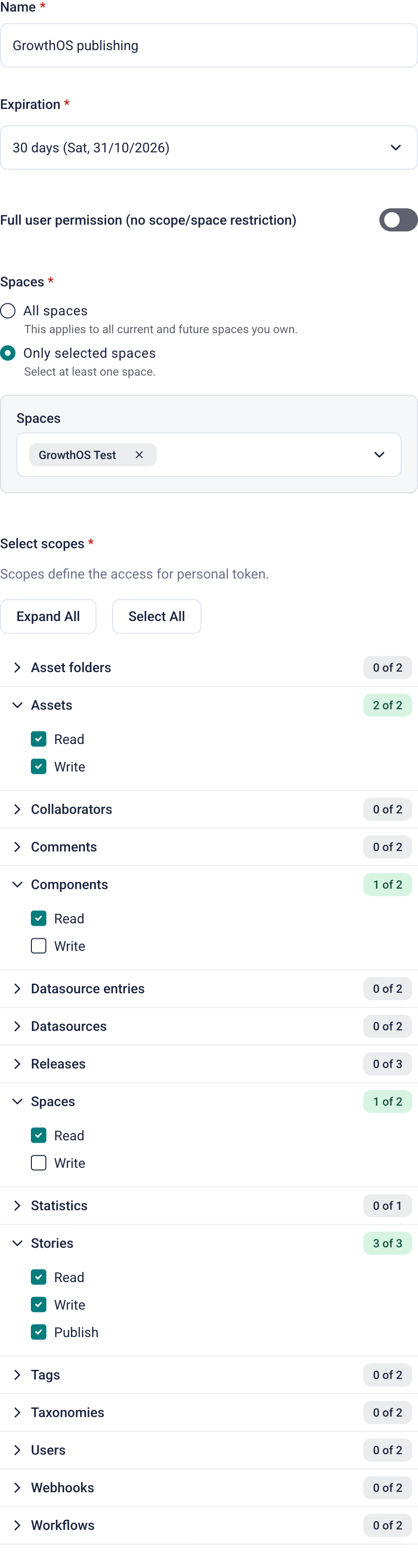
The Generate New Token panel set up for GrowthOS. Every other scope group stays at 0.
Click Generate Token and copy the token. Storyblok shows it only once.
Use a personal access token, not one from the space's Settings → Access Tokens tab. Those are Content Delivery tokens for reading published content, and none of them can write a story, so GrowthOS rejects them at the connect step.
Connect the CMS in GrowthOS
In GrowthOS, go to Workspace Admin → CMS Connections and click Connect a CMS. Pick Storyblok from the cards and fill in the form:
- Personal access token: the token from step 1.
- Space ID: the number under Settings → Space in Storyblok, without the leading
#. The copy button next to it copies the#too, and GrowthOS accepts digits only. - Region (optional): the Server Location shown beside the Space ID, in lowercase:
eu,us,ca, orap(Australia). Leave it blank for an EU space. - Public site URL (optional): your website's address, for example
https://www.example.com. Storyblok is headless and never knows your page URLs, so a published article's link is this URL plus the story's full path in Storyblok (blog/my-article, say). You can add it later, but live publishing won't run without it.
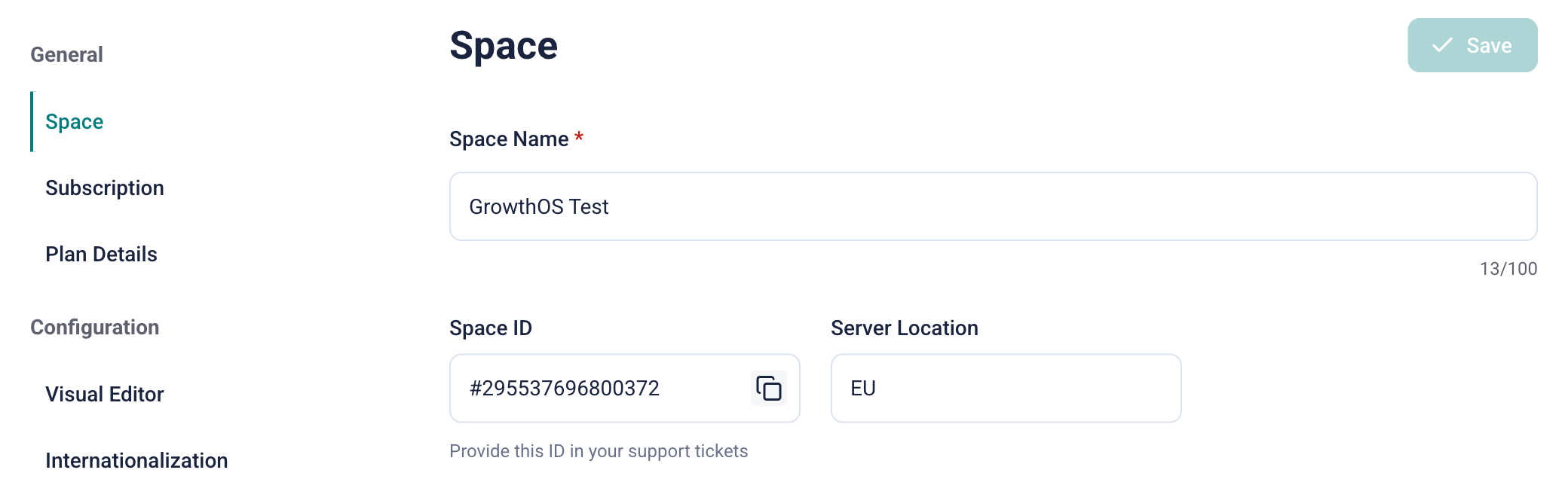
Space ID and Server Location sit side by side on the space's Settings → Space screen. Enter the ID without the #.
Leave the live-publishing switch off for now; it's the right default, and you can flip it later from this same screen once you trust the pipeline (see how publishing works).
Submitting lands you on the connection's settings screen, and GrowthOS immediately reads your space's content types. Within a few moments the header fills in with how many it found. If your block library changes later, Re-read refreshes the picture without disturbing anything already set up.
Add the blog content type
Click Add a content type and pick the one your articles use (usually something like article or post). The dialog lists your space's content type blocks (nestable blocks aren't publish targets) and warns you if the one you picked has no richtext, markdown, or textarea field, which usually means it's the wrong one. Confirming opens that content type's setup wizard.
If one space feeds more than one site, the content type's page has its own Public base URL under Content type settings, which overrides the connection's Public site URL for that content type.
Review and confirm the field mapping
Click Propose mapping, and an agent (an automated worker inside GrowthOS) proposes a mapping from GrowthOS's article fields (title, slug, body, meta title, meta description, cover image) to the content type's fields, with a confidence and a reason for each suggestion. Review it in the confirm form: required fields are listed first and marked, each field has a source picker, and anything GrowthOS shouldn't touch can be left unmapped or given a fixed value. The form blocks you if a required field is uncovered or the article body has no home, so you can't confirm a broken mapping. When it's right, click Confirm mapping.
Three rows are Storyblok's own and don't appear in your block schema, because Storyblok keeps them on the story rather than in its content:
- Story name and Slug, proposed as the article's Title and Slug. Keep Slug on the article's Slug: it's how GrowthOS finds the story again on later publishes.
- Folder, where new stories are created (your
blogfolder, say). The agent never picks it, so choose it yourself from the list of every folder in the space. Changing it later never moves stories already created, so give each content type its own folder.
Fields that point at other stories, like an author or a category, get a picker of those stories for their fixed value, and a language field picks from your space's languages (Default language is your space's main one). Author can stay mapped with a default: the default is preselected on each article's Publish step, and you can change it per article. Tag-style fields such as topics are best left unmapped, so your editors keep choosing them in Storyblok.
Storyblok checks required fields when a story goes live, not when a draft is saved, so a required field the article doesn't fill (a category, say) needs a fixed value here, or going live will be refused.
Run the test article
Click Send a test article. Within a few seconds the wizard stages a sample article in your folder as a draft story, then shows you exactly what Storyblok received, field by field, with an Open it in Storyblok link to the real story. Reference fields and the folder show as Storyblok IDs rather than names; that's expected. This is your proof the mapping works before any real content moves. Check that the body kept its structure (headings, lists, links) and that every mapped field carries the right value.
Finish
The last step recaps the content type, the mapping, and the test round trip. Click Finish setup: the content type's page opens, marked ready. Finishing marks the content type ready and deletes the sample story from your space, so nothing is left behind. You can add more content types to the same connection later; each gets its own mapping and its own wizard pass.
How publishing works after setup
Every article in GrowthOS now has a working Publish step. Pick the content type, publish, and watch the card update as the article lands.
- Draft first, always. A new article is created as an unpublished story. On a story that's already live, the update is saved as unpublished changes, and the live page keeps its current version until the story is published again. Promoting from GrowthOS only works when the connection's live-publishing switch is on (it starts off); until then, going live happens in Storyblok on your terms.
- Updates merge into the story. Edit the article in GrowthOS and publish again; the existing story is updated in place. Only the mapped fields and fixed values are rewritten; everything else your editors set in Storyblok (topics, hero blocks, CTAs) stays as they left it. An editor's change to a mapped field, like the author or the meta description, reverts on the next publish from GrowthOS. Republishing an unchanged article does nothing rather than creating a duplicate.
- A live story keeps its name and slug. Storyblok applies a story's name and slug to the live page the moment they change, even from a draft save. So once a story is live, GrowthOS never changes either; rename a live article in Storyblok.
- Images live in your asset library. Inline images, and the cover when the content type has an asset field, upload to your space's assets and serve from Storyblok's CDN. The published page never loads assets from GrowthOS, and republishing reuses the assets already uploaded instead of duplicating them.
- The body is native richtext. Headings, lists, links, quotes, code blocks, tables, and inline formatting arrive as standard Storyblok richtext nodes, the same ones the editor creates, so your frontend renders them the way it renders everything else.
Going live publishes the whole story. Storyblok publishes a story as one unit, so when you turn on live publishing, every promote from GrowthOS also takes your editors' pending draft edits on that story live. Check the story in Storyblok before promoting it.
Known limitations
These hold as of 2026-10-01:
- One language per content type. A language field takes a fixed value in the mapping, and GrowthOS never adopts or overwrites a story in another language, even one at the same slug. Storyblok's field-level translations aren't written.
- Some field types are never written. Nested blocks, table fields, multi-asset fields, and plugin fields show as "Managed in Storyblok" in the mapping, because writing part of one would replace the whole value. Keep managing them in Storyblok.
- Headings run from H2 to H5. An H1 in the article becomes H2 and an H6 becomes H5.
- Internal links are URL links, not Storyblok story links: they point at the page's address, so a page moved in Storyblok doesn't update the links to it.
- Stories are found in the picked folder only. An existing story elsewhere in the space, including a subfolder of the picked one, isn't found when the article is first published.
- Four regions. The connection works with spaces in the EU, US, Canada, and Australia; spaces in Storyblok's China region can't connect.
Troubleshooting
- The connect step rejects the token. Check, in order: it's a personal access token, not a space Access Token; under Only selected spaces it includes this space; it has every scope box from step 1; and the Space ID matches. A wrong Space ID fails exactly like a token without access, and a Space ID pasted with its leading
#is refused with a message asking for the Space ID. If all of that checks out, confirm the region. - Every publish starts failing with a rejected token. The token expired, or its owner lost access to the space. Generate a new one and paste it on the connection's settings screen; nothing else needs redoing.
- A publish fails because a story already has that slug. Another story in the folder already uses the article's slug, and it isn't one this article published. It may be another language's version, another content type's story, or a page someone else owns, so GrowthOS won't write over it. Change the article's slug, or resolve the collision in Storyblok, then publish again. If it's the test article that collides, an earlier sample was left behind: delete it in Storyblok and send the test article again.
- Going live is refused because a field can't be blank. A required field in the content type is empty. Fill it in Storyblok, or give it a fixed value in the mapping, then publish again.
- Going live is refused with a message about the site URL. Add a Public site URL on the connection's settings screen (or a Public base URL on the content type), because that's how GrowthOS builds the link to your published page.
- A publish says the folder is missing or gone. The content type has no folder picked, or the picked folder was deleted. Pick a folder in the content type's mapping and publish again.
- A publish is refused because the content type changed. Someone renamed, added, or removed a field in the block library, and GrowthOS pauses that content type rather than publish into a structure it no longer recognizes. Reordering fields doesn't count. Open the content type in CMS Connections and re-run the mapping against the refreshed schema; other content types on the connection keep publishing throughout.
- The story was deleted in Storyblok. Publish the article again; GrowthOS creates it fresh in the picked folder.